Before continuing with this blog, I recommend read other parts of the blog series to get the full understanding of this series.
- Part 1: Automate VM Builds in VCF9 Automation VM Apps Org – Sample Project
- Part 2: Configure VCF SSO as Identity Provider in VM Apps Organization
- Part 3: Configuring VM Apps Organization for Automated VM Builds
- Part 4: Integrating Embedded vRO with VM Apps Organization in VCFA
- Part 5: VM Apps organization – VM build blueprint design
- Part 6: Publish template to catalog and customize the request form in VMApps
In the last blog we have designed the blueprint, we tested the placement logic, we tested the deployment and confirmed that VMs are deploying correctly as per requirements.
In today’s blog we will see how we can publish this to service catalog, so that end users can request the VM deployments.
Publishing the template to Catalog
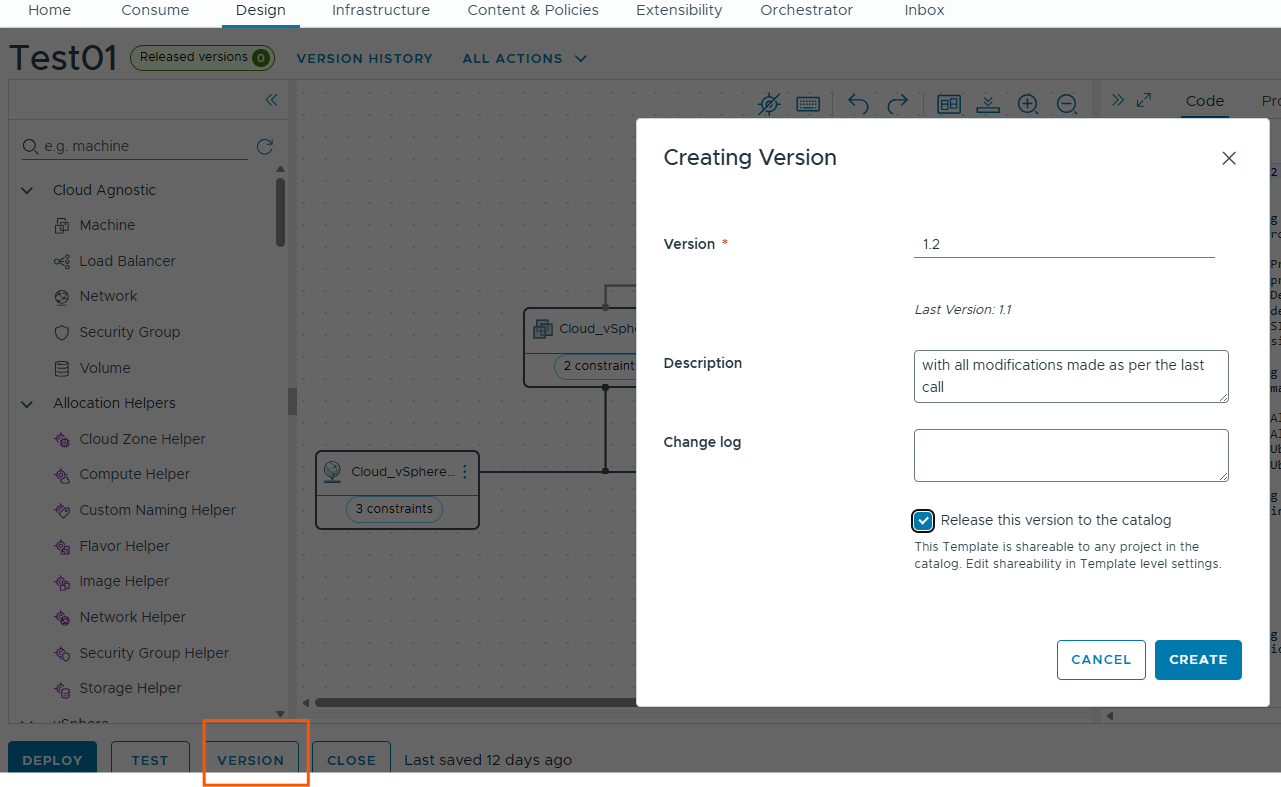
First step is to version our template. Go to design tab –> select your template –> template editor view opens.
In this, click on Version button, choose to Release the version to catalog.
Next, we will go to Content & Policies –> Content Sources and create a content source for our catalog.
Click on New to create a content source.
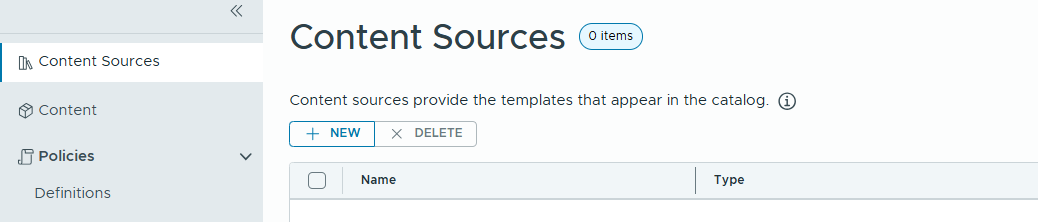
Select type as Template.
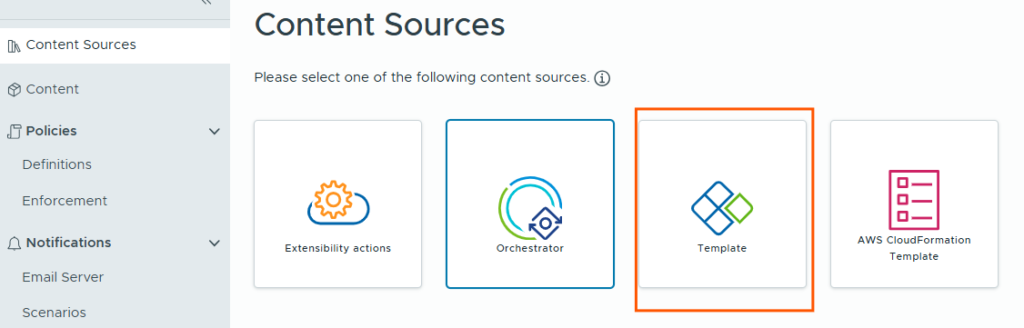
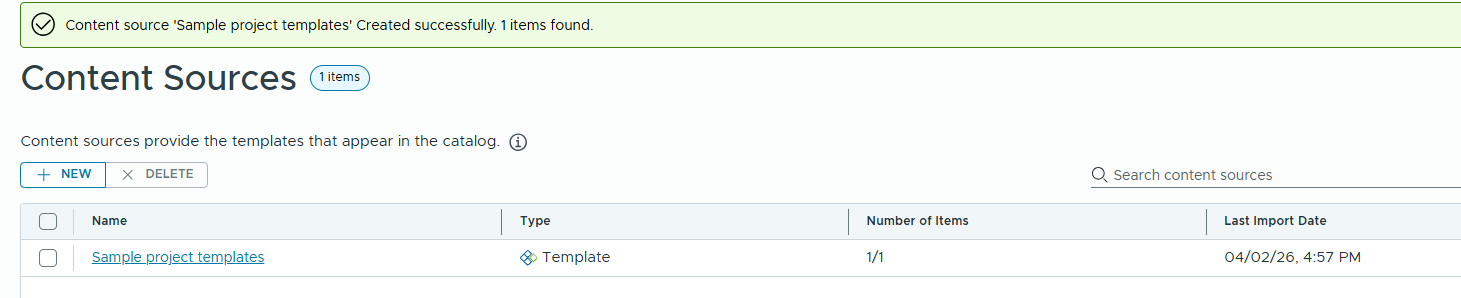
Now provide the name for the content source, and source project details and validate the source.
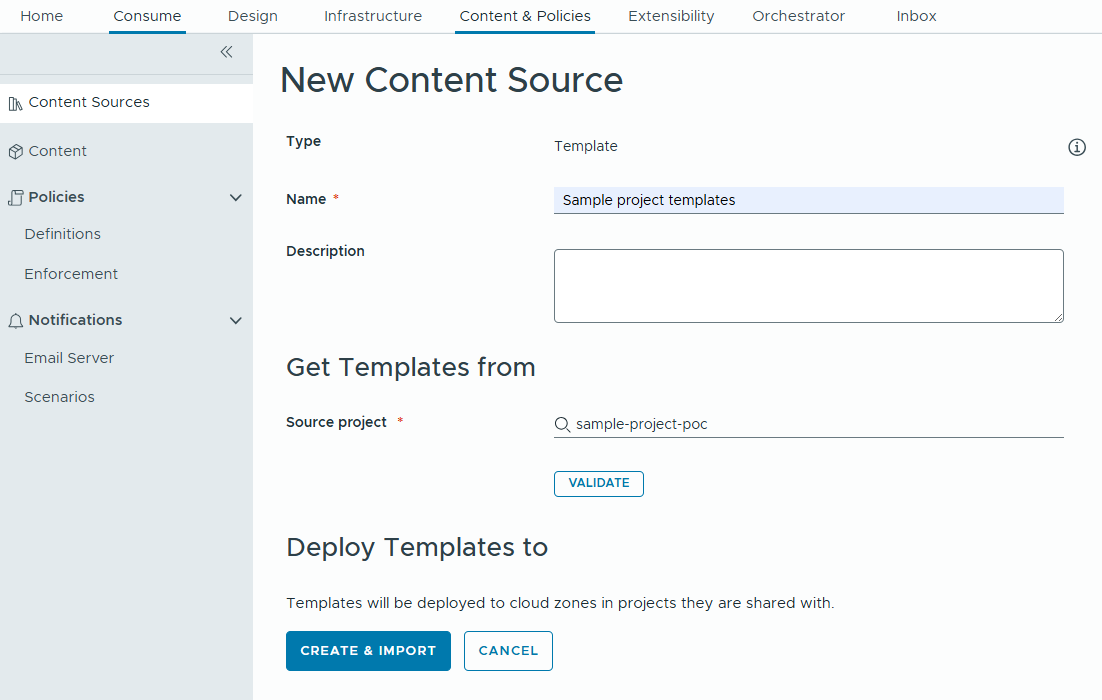
These templates will be deployed to the cloud zones in projects as they are associated with.
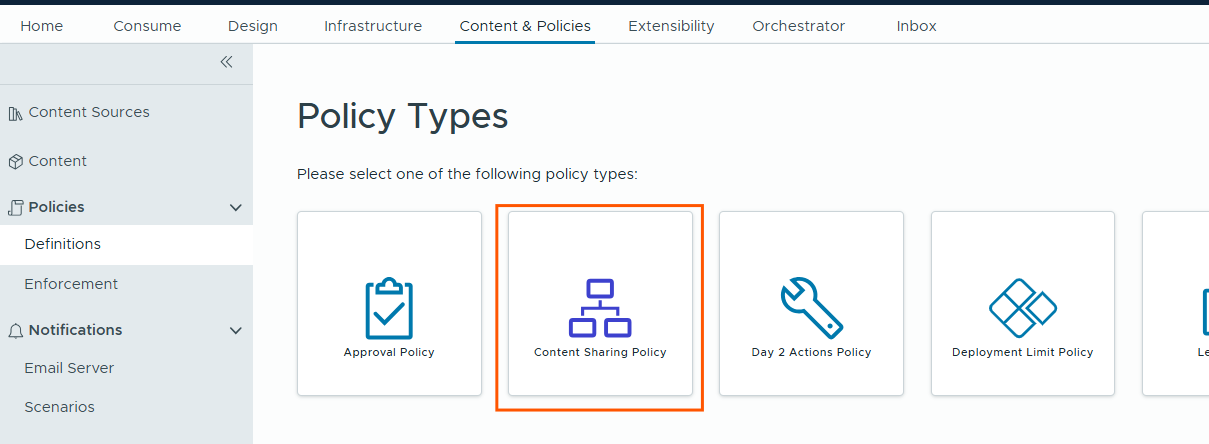
Next, we will need to create a content sharing policy.
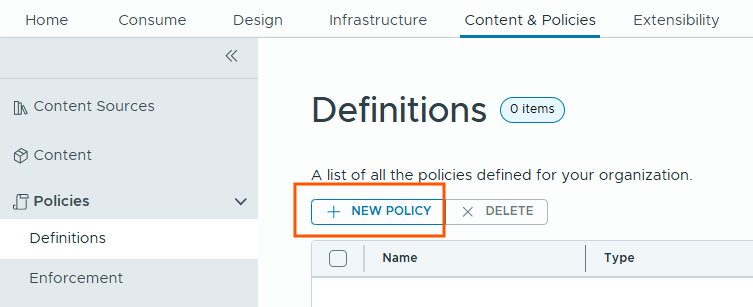
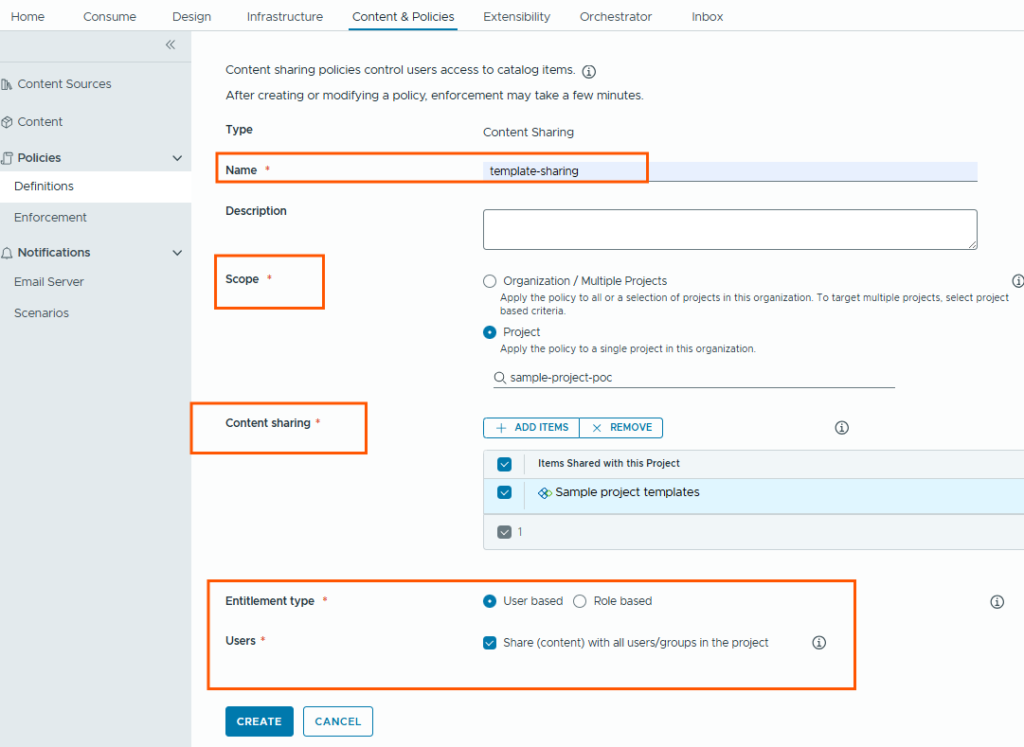
We will provide a name, choose the scope. I am choosing the sample-project only and select content source items which need to be shared, and select the entitlement type. You can share the content to all users/groups in the project or select individual users/groups to create the entitlement.
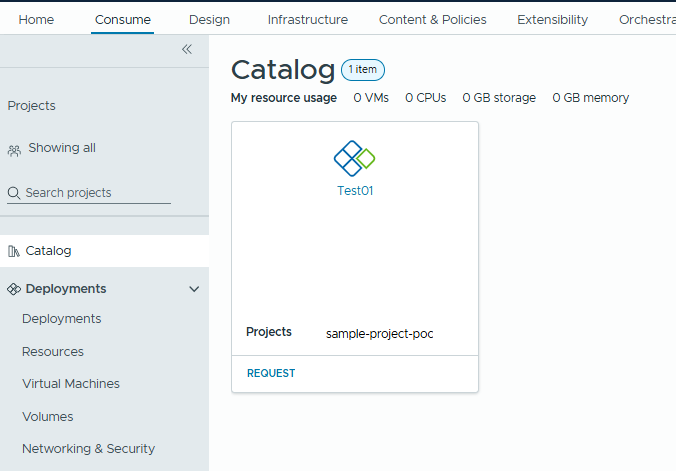
Next, we can check if the catalog item is visible or not. Lets go to Consume tab –> Catalog section.
Now users can click on REQUEST button to request the VM deployment. This template is for Linux VM builds which supports both Alma Linux and Ubuntu 22.04.
When we click on Request button, we see the default form like below.
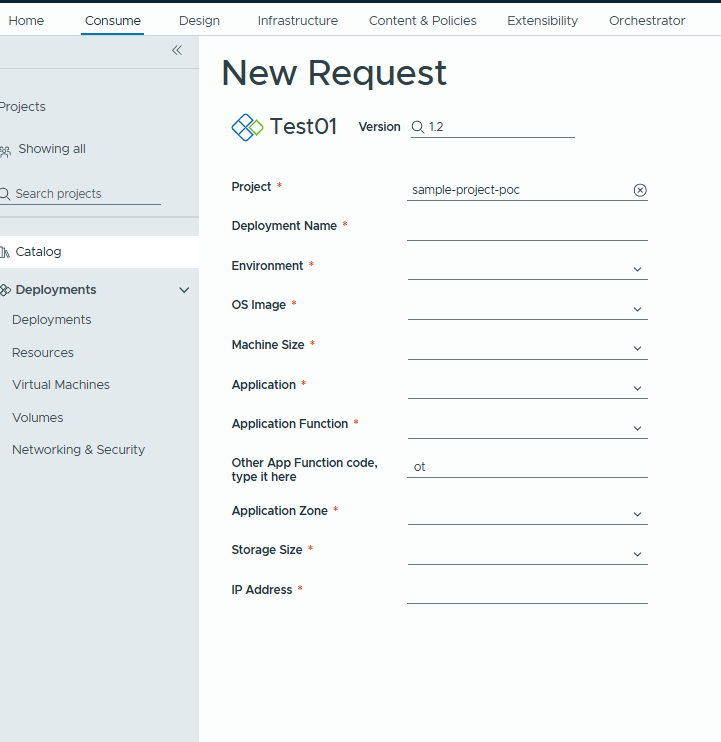
We can customize this form as per the user requirements.
Let’s say we have below requirements.
- We only want to display “Other App function code, type it here” field only if the user selects Application Function as “Other Role”.
- App zone (Internal/External) should not be visible when user selects the Application function as “DB Server”
Let’s customize the form with above requirements.
Customizing the request form
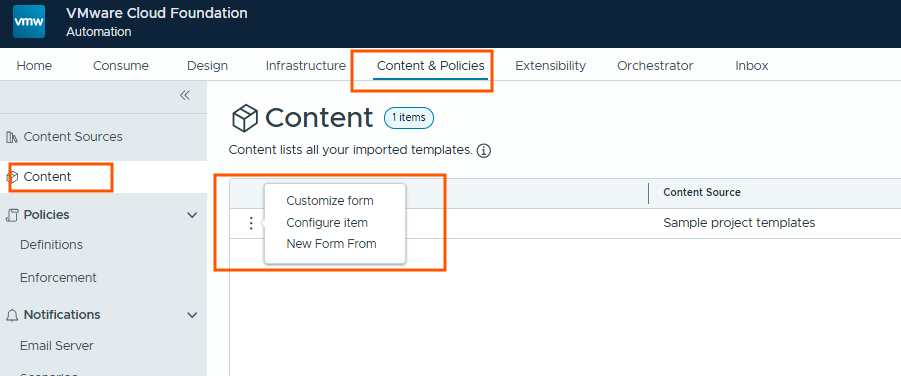
Let’s go to Content & Policies and select the template and click on customize the form.
Now we can see customize form editor.
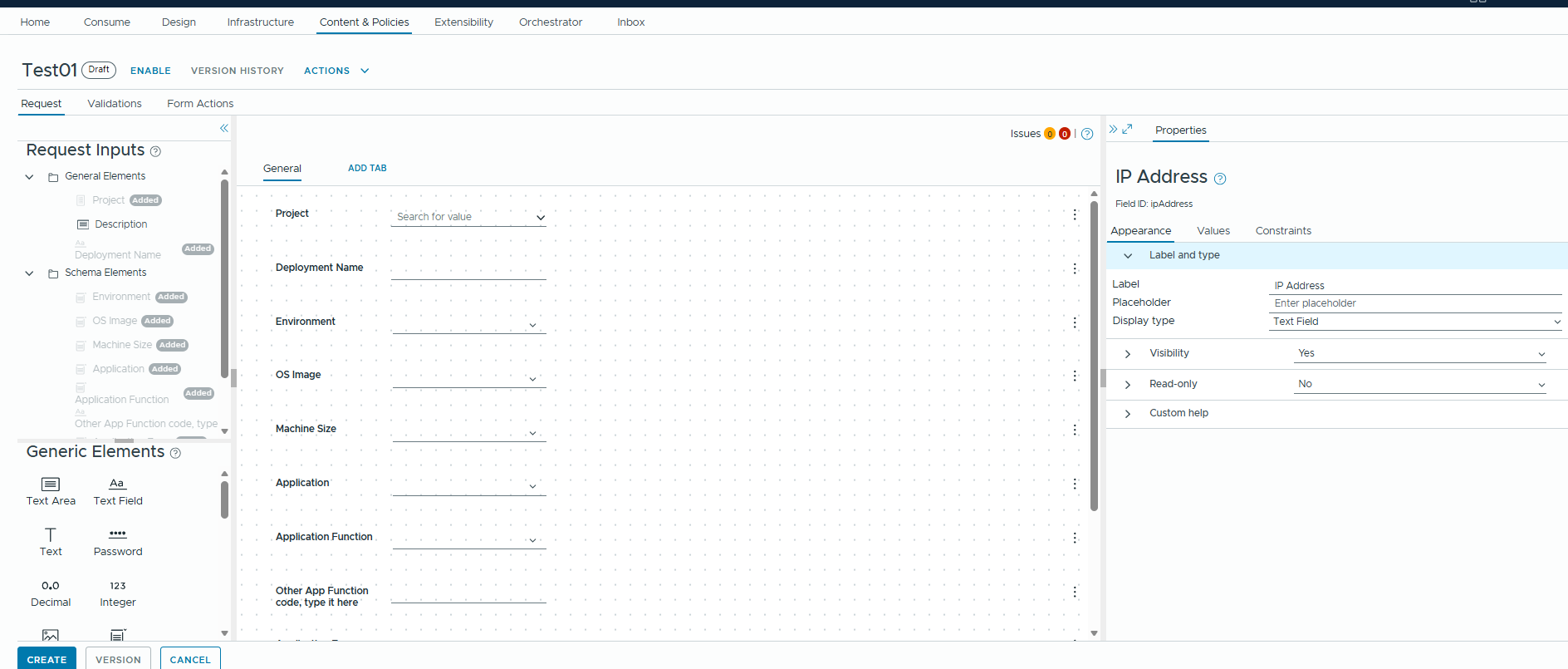
Our first requirement is to make “Other App Function code, type it here” field should be visible only when user selects the Application function as “Other Role”.
Click on the field “Other App Function code, type it here”.
On the right side, we can customize the properties of the selected field. we will customize the visibility of this field as per the requirement.
— value source should be set to Conditional value
— Set value should be Yes
— Add the expression/conditional logic for this field to be visible.
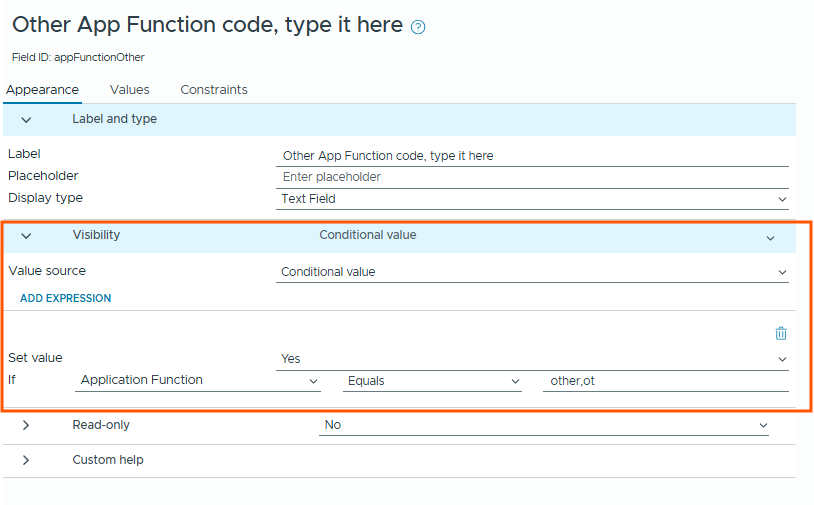
When user selects Application Function as “Other Role”, its value will be “other,ot”. That’s how we designed the template.
  appFunction:
    type: string
    title: Application Function
    oneOf:
      - title: Web Server
        const: web,wb
      - title: App Server
        const: app,ap
      - title: DB Server
        const: db,db
      - title: Other Role
        const: other,ot
Then we will do the same for second requirement.
App zone (Internal/External) should not be visible when user selects the Application function as “DB Server”, it means App zone should be visible when user selects any other role except DB role.
Once we are good with the customization requirements, we can click on create button and enable it.
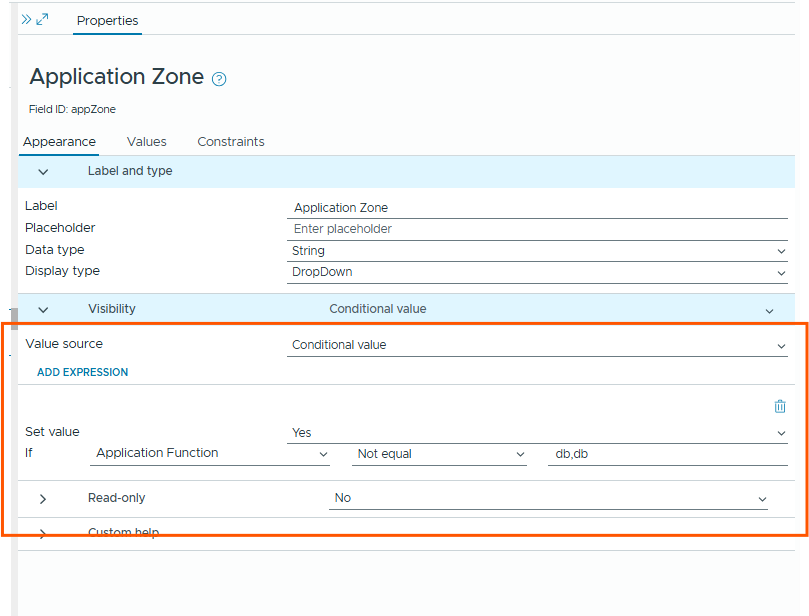
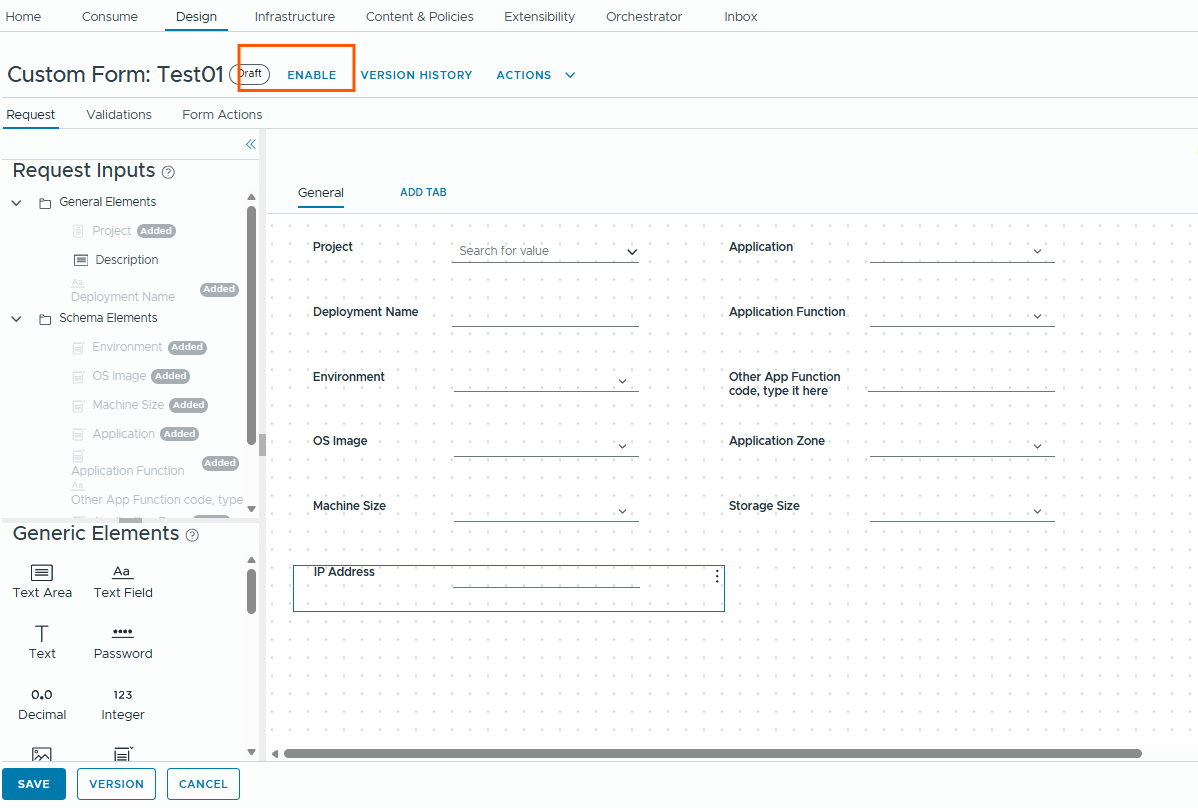
Now let’s verify the request form is reflecting these customizations or not.
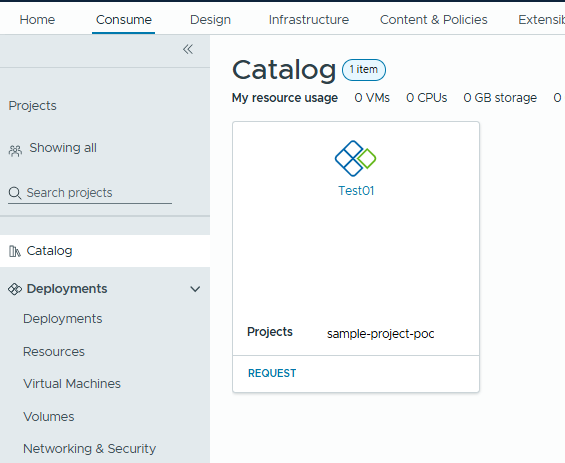
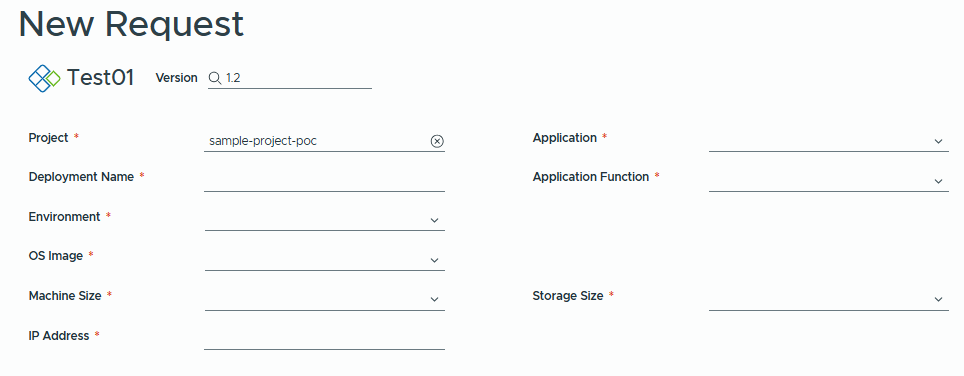
We can see the two fields are not visible in the form.
— Other App Function code, type it here
— Application Zone
Let’s fill in the form and chose the Application Function as Other Role.
When we select Other Role, “Other App Function code, type it here” field is now visible so user can type the code for other role application.
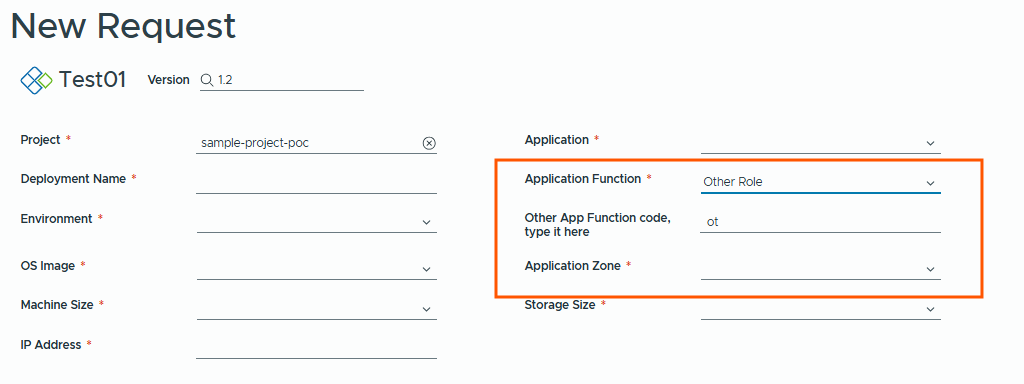
When we select Web Server/App Server, we can see the Application zone field is visible.
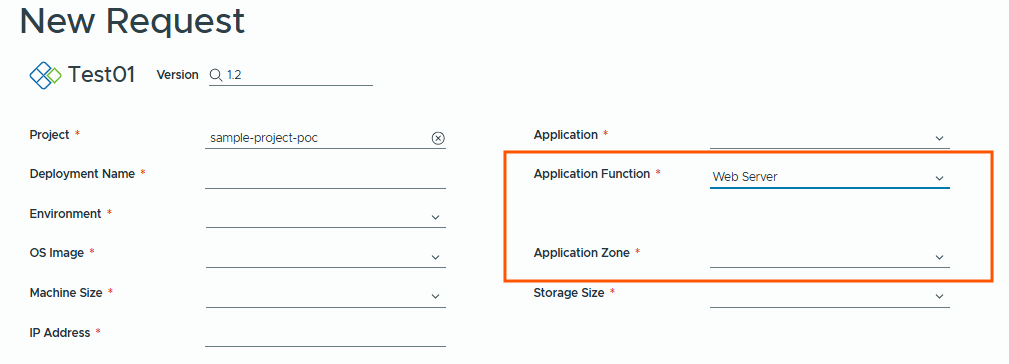
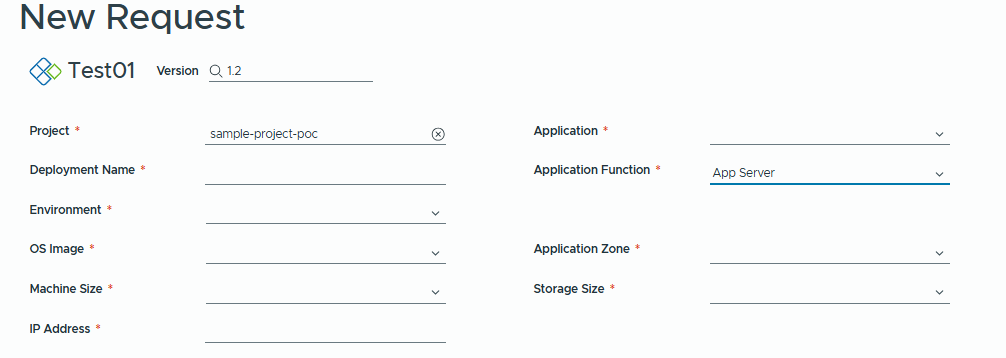
When we chose, DB server Application zone field is not visible, this satisfies the second requirement.
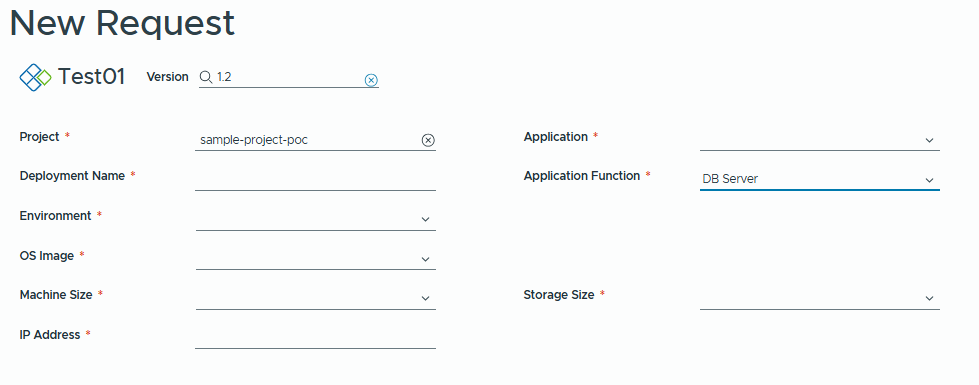
This is how we publish the template to service catalog and customize the form as per requirements.
Thank you for reading.