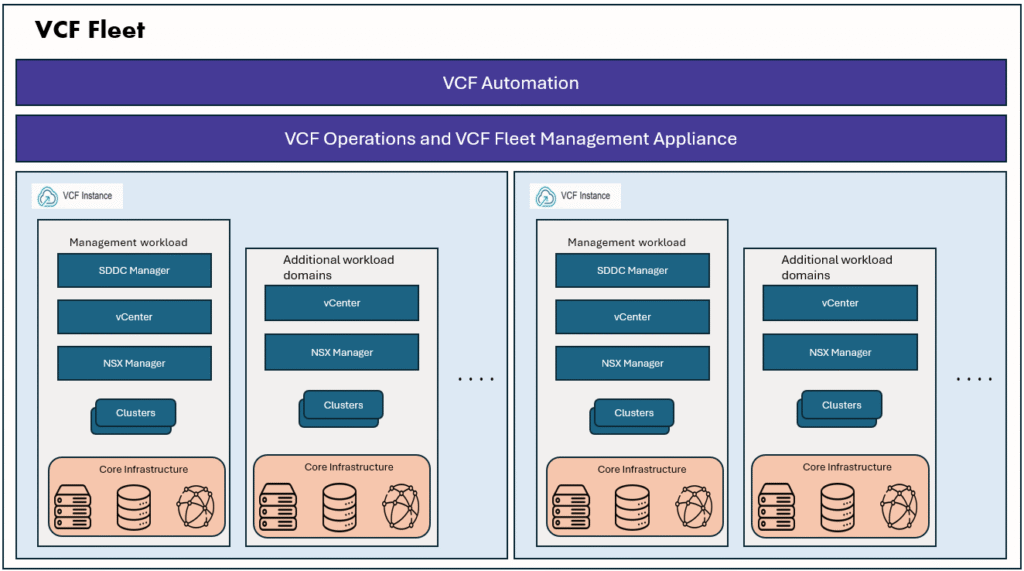
This is part 2 of a 3 part series on VCF Automation.
In Part 1 VCF 9 Automation for a Cloud-Like Experience we discussed about basics of VCF Automation 9, its foundations and what are the important components in it.
- Part 1 – VCF9 Automation for a Cloud-Like Experience
- Part 2 – VCF Automation: Step by step guide to setup Provider Management
- Part 3 – VCF Automation: Step by step guide to setup Organization management
In this blog, I will walk through the steps to getting started with VCF9 Automation Provider and Organization (tenant) setup.
First things first, before setting up our VCF9 Automation, we need to ensure the below pre-requisites are satisfied.
Pre-requisites:
- VCF Deployment completed, you have VCF Fleet, VCF instance with a management domain, one or more workload domains are deployed and ready to be consumed.
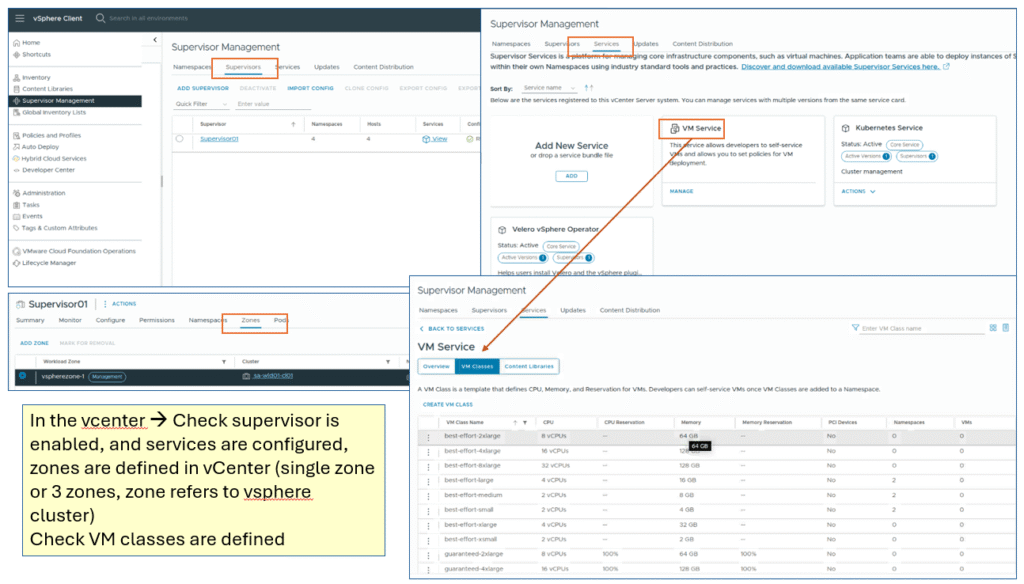
- vSphere supervisor services are enabled on workload domain vCenter, this is important for enabling end users (Devops/VM admins/Platform team) to consume resources in a self-service manner. They will be able to request VMs, vSphere Kubernetes clusters, and vSphere pods.
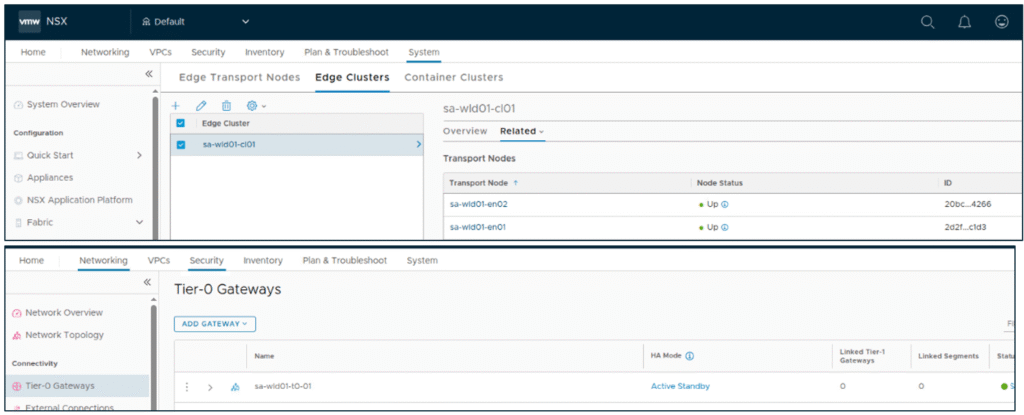
- An NSX Edge cluster is deployed in the workload domain, A Tier-0 (T0) gateway is configured which is the gateway which enables the North-South traffic routing, provides the connectivity between the workload domain and the external network.
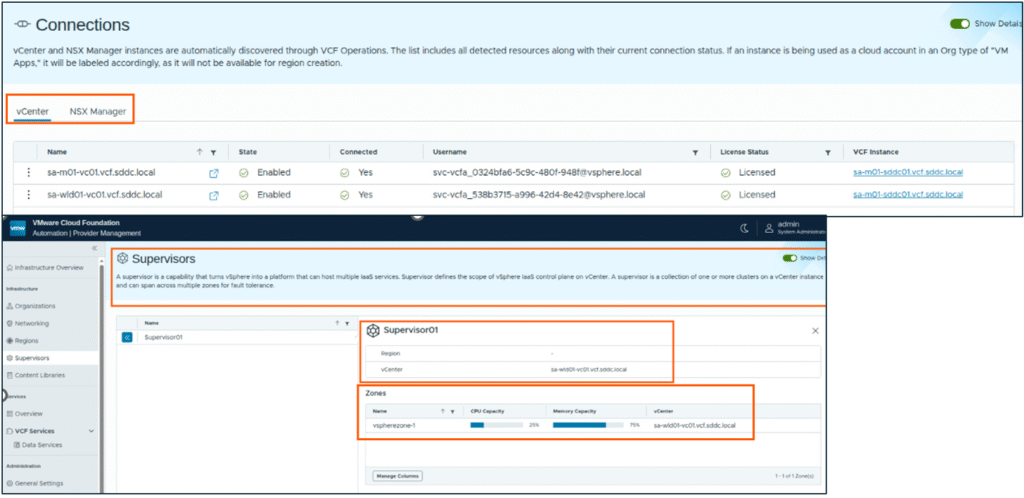
- In VCF Automation, check and validate that vCenter and NSX manager connections are automatically discovered and showing active.
- Verify the supervisor configuration is detected from underlying VCF Fleet infrastructure.
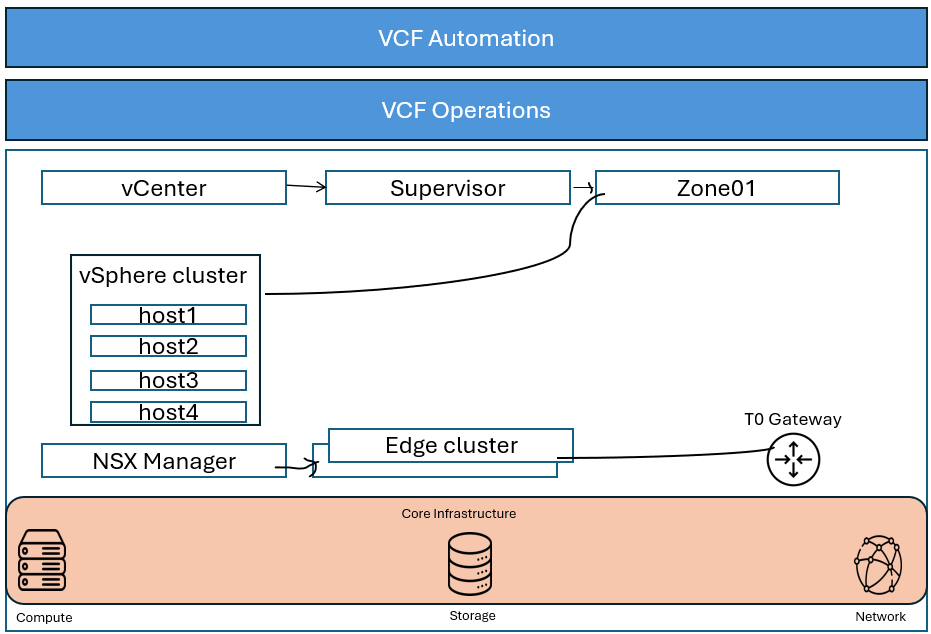
Below diagram pictorially represents workload domain components and they will be discovered in VCF Automation via VCF operations.
In below diagram we quickly verified the supervisor services are configured in vCenter.
Check and validate the NSX Edge cluster and Tier-0 gateway are deployed and healthy.
Login VCF Automation, and check for vCenter and NSX Manager connections and supervisor configuration, these should be discovered automatically.
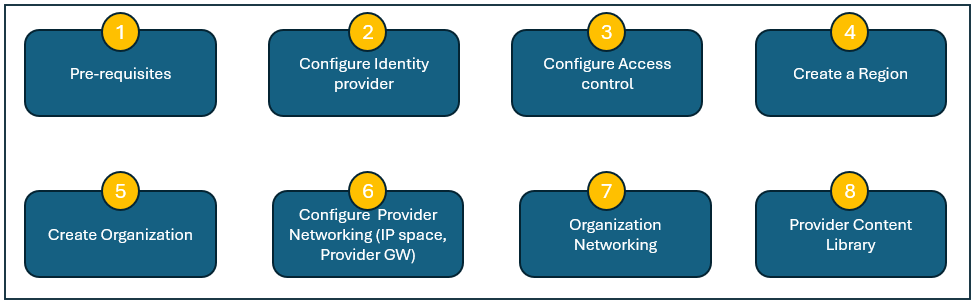
We have verified all the pre-requisites, lets proceed with provider setup. In the below flow chart, described the high level steps involved in provider management setup.
We have completed the pre-requisites verifications already.
Setup Identity provider and access control
1. Login VCF automation, organization name system, use local account admin to login.
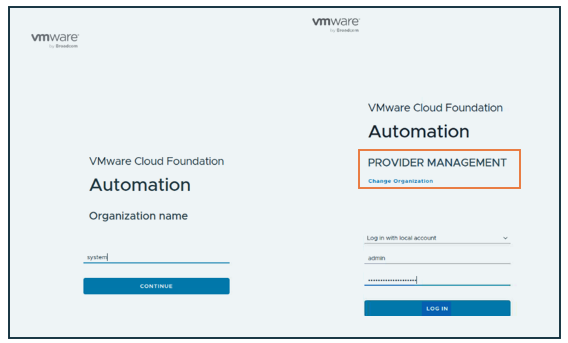
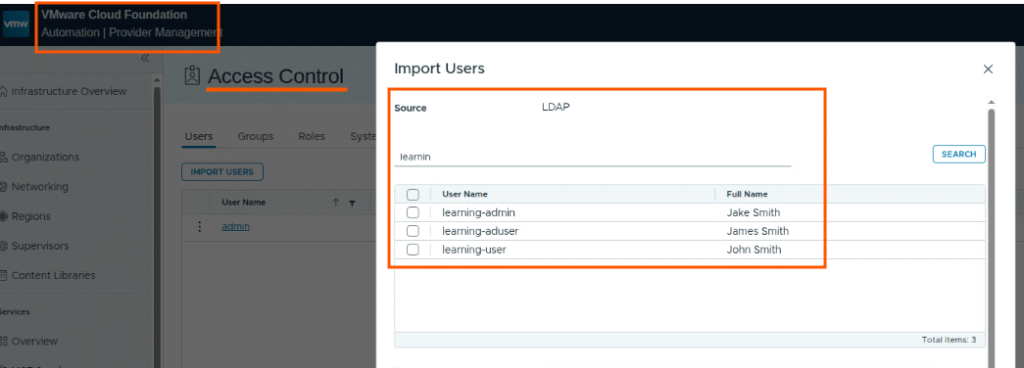
In this VCF automation, we have LDAP identity provider is already setup, we can import users who will be assigned organization/project management previliges.
If Identity provider is not setup, you can setup in the Identity provider section. You can setup LDAP, OIDC, SAML based identity providers.
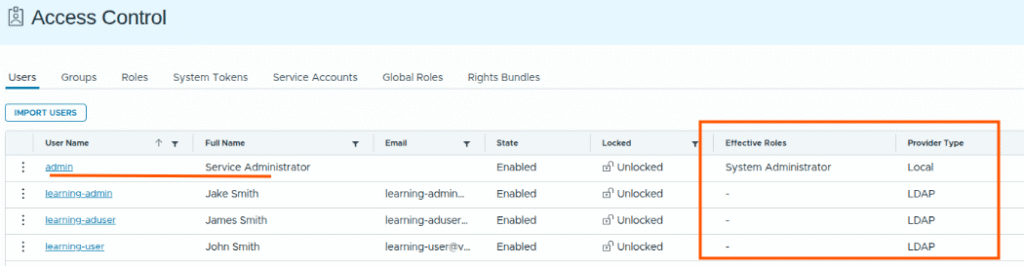
Next you can import users. In this lab we have imported 3 users from LDAP IdP. Or we can import users later after creating organization and projects. For now we have imported users but not assigning any roles at this stage.
Create Region:
In the provider management console, click on Regions –> create region
A region is a construct that defines which vCenters and vSphere clusters(supervisors), and which NSX Managers/Edge clusters will be made available for consumption by organizations and projects.
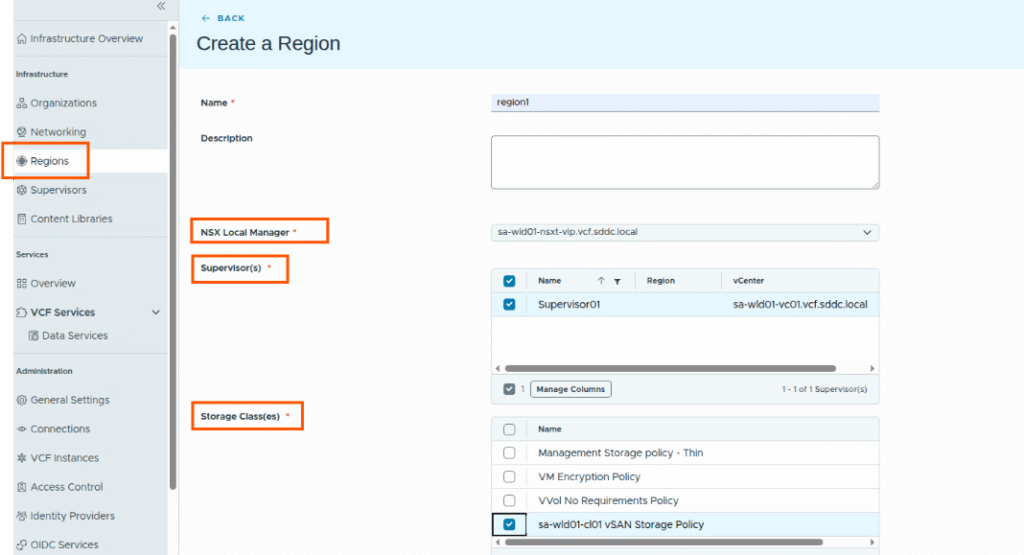
wait for the region to be ready state then proceed with next steps.
Verify that region shows the supervisor config, vCenter, Zone, VM classes showing correctly.
Create Organization
When we create organization, we specify the name, then map to a region, specify the quota for CPU and Memory limit, then map it to VM classes by selecting a few or all VM classes, then map it to Storage class, define storage limit.
And you can create a first user for the organization, assign role as Organization administrator. This is the local user for this organization.
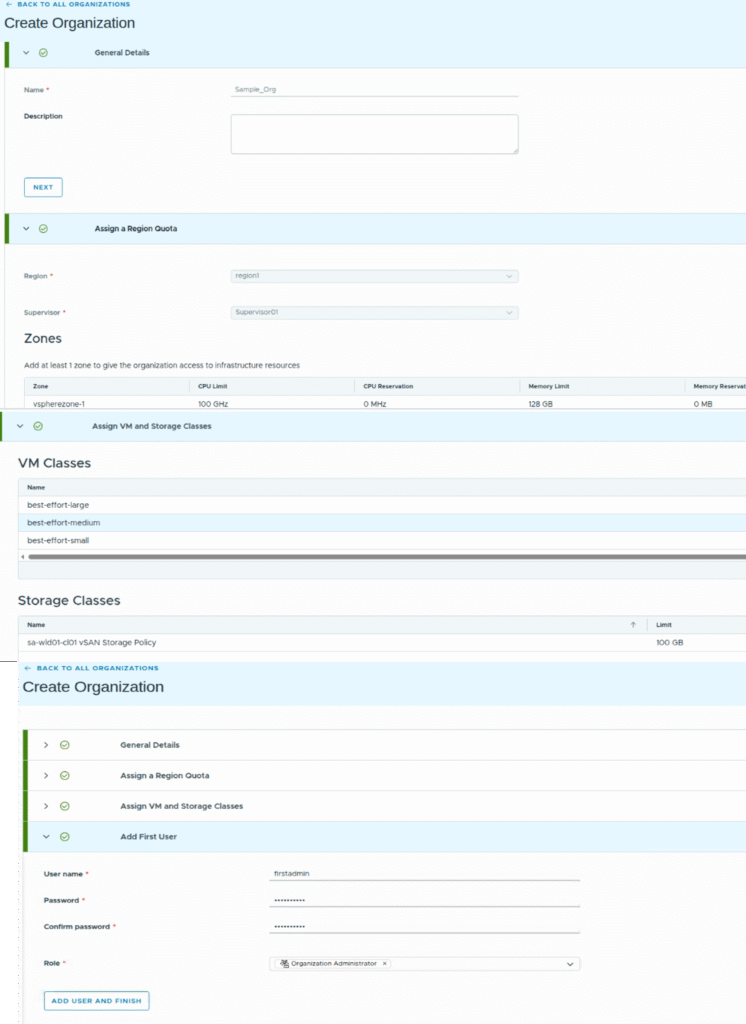
Now you see Sample_Org is ready, and it says networking is not configured for this organization.
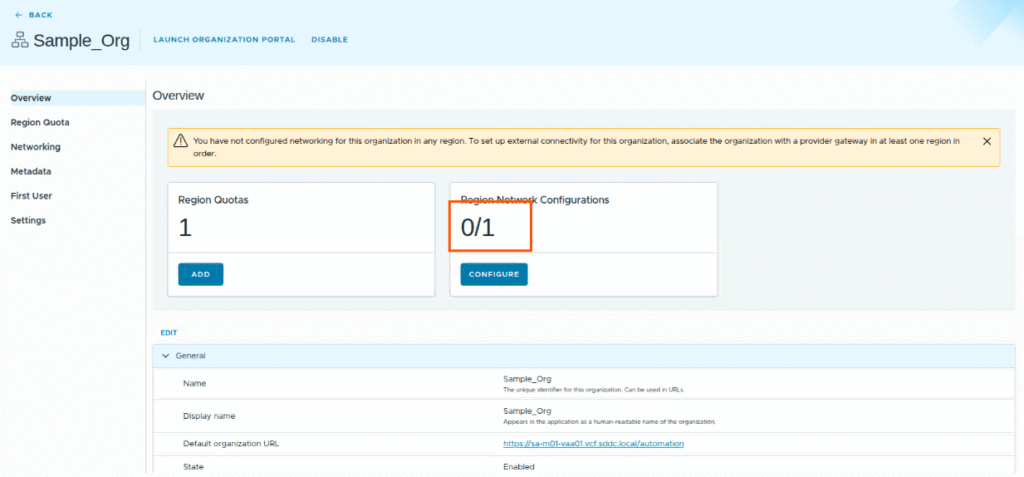
Provider networking
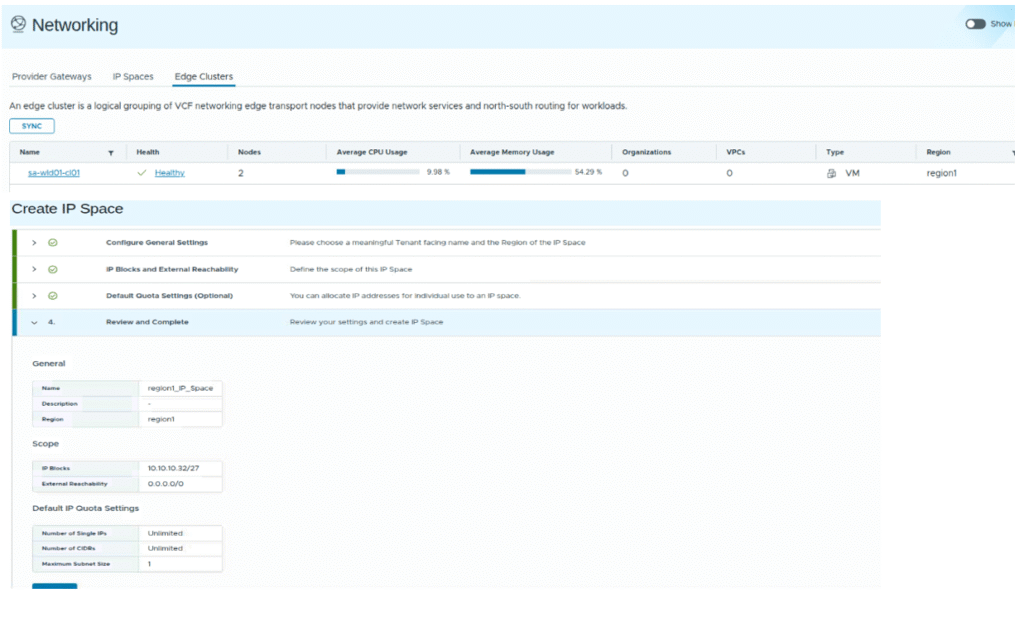
Now we will create IP space and Provider gateway.
In VCF automation, left side panel, click on Networking
Verify edge cluster is discovered, click on IP spaces , create an IP space for region1. Then we will create Provider gateway.
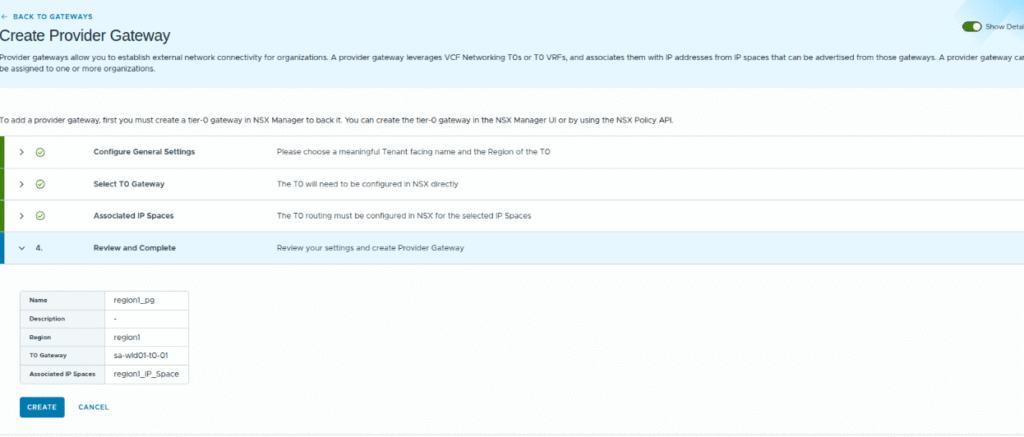
While creating provider gateway, we will chose the Tier-0 gateway that is defined in the selected edge cluster and we will choose the IP space.
Organization Networking
Select your organization, click on Networking, edit the log identifier then create the networking configuration for your organization.
You will select the region, provider gateway, select the edge cluster and Create.
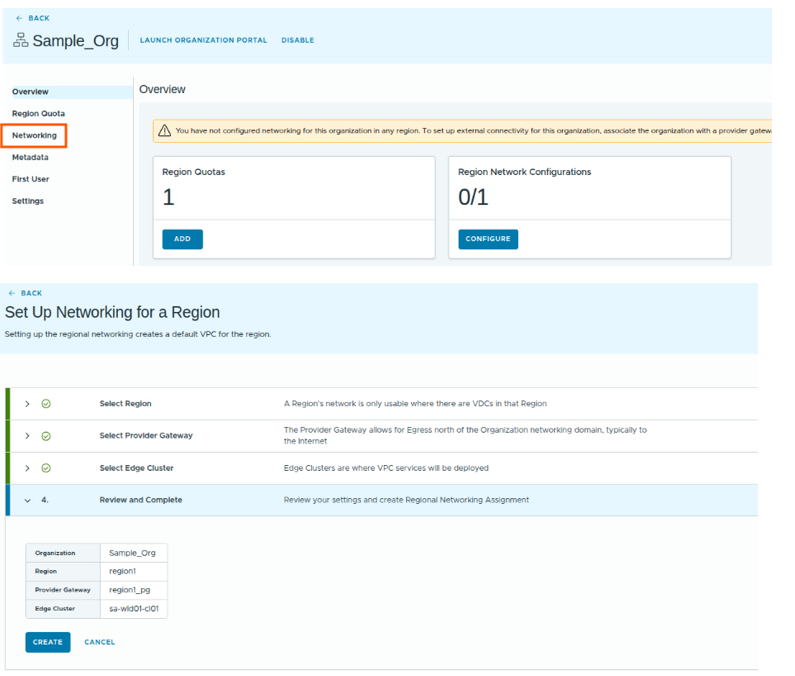
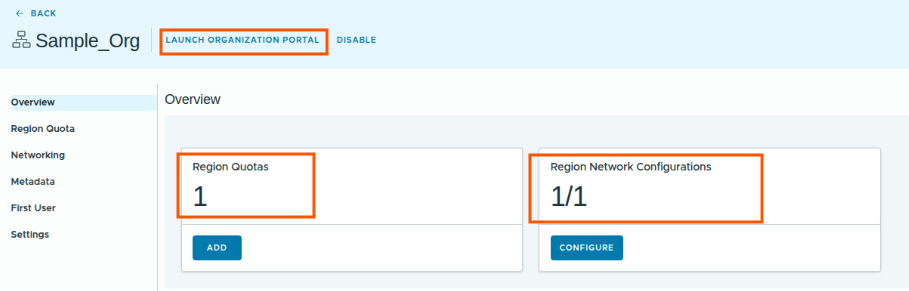
Now our organization is ready, it have Region quota setup (CPU, Memory, Storage limits) and Networking is configured.
Provider content library
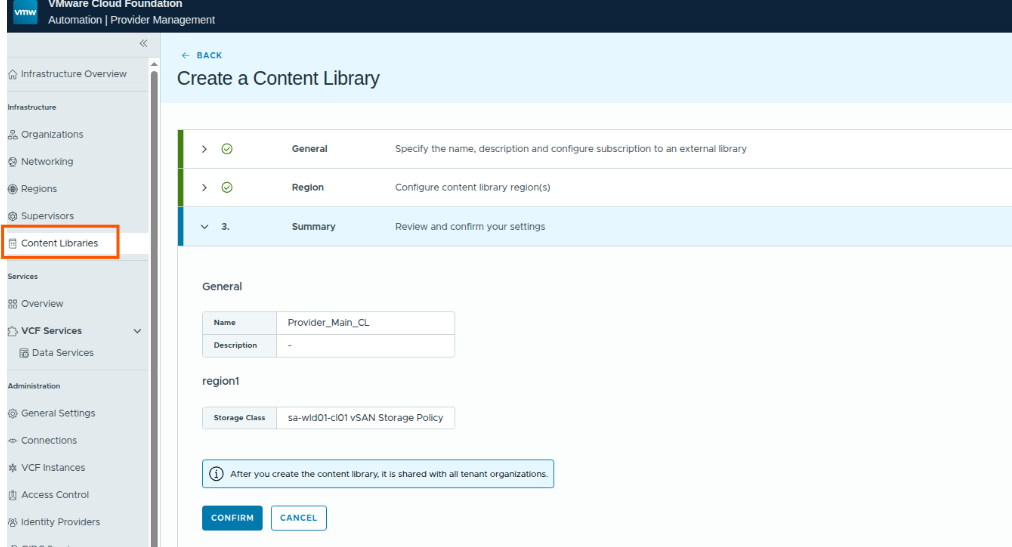
This content library is for the entire region region1, this content library and items in this content library are accessible from all the organizations with in this region.
With this, we have prepared our first organization, mapped it to the region, assigned region quotas, configured the networking, then setup a provider content library for the region level.
In the next blog post, I will walk though the organization level setup, creating projects, deploying VM from IaaS console and catalogue etc.
Thank you for Reading !!