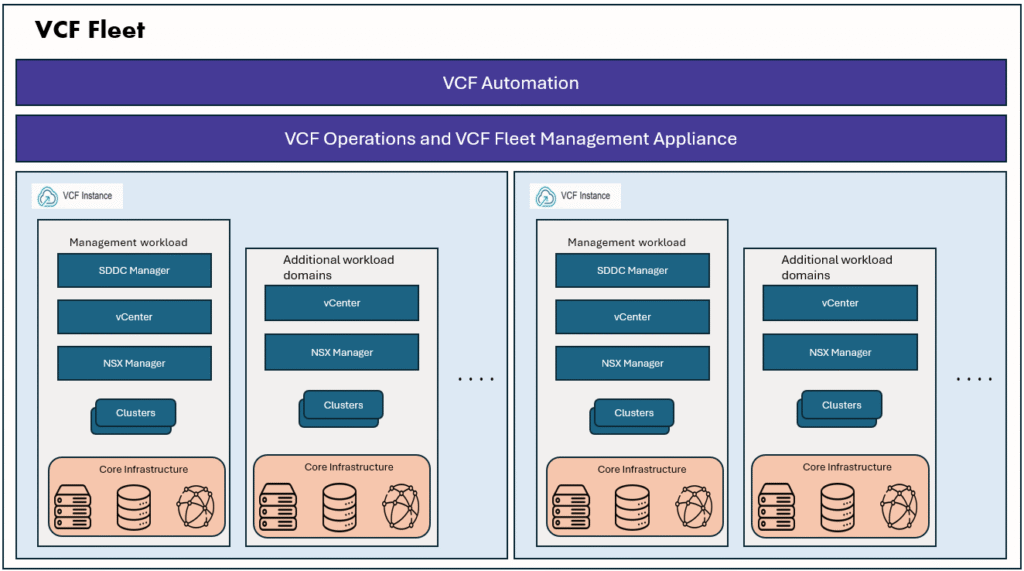
In my previous blog, we configured the VM Apps Organization to enable automated VM provisioning. To implement more advanced use cases such as custom hostnames, automating DNS record requires VRO capabilities. To achieve this, we will leverage the embedded vRealize Orchestrator (vRO) within the VM Apps Organization.
I recommend read other parts of the blog series to get the full understanding of this series.
Part 1: Automate VM Builds in VCF9 Automation VM Apps Org – Sample Project
Part 2: Configure VCF SSO as Identity Provider in VM Apps Organization
Part 3: Configuring VM Apps Organization for Automated VM Builds
Part 4: Integrating Embedded vRO with VM Apps Organization in VCFA
In today’s blog, we will focus on integrating the embedded vRO and performing the necessary configurations to support automation workflows.
- Registering core infrastructure components using workflows such as:
- Add Active Directory (AD) Server
- Add vCenter Server
- Add VCFA (VMware Cloud Foundation Automation)
- Importing and configuring custom workflow packages (e.g., custom hostname automation)
- Preparing the environment to enable advanced automation scenarios
Adding embedded VRO integration
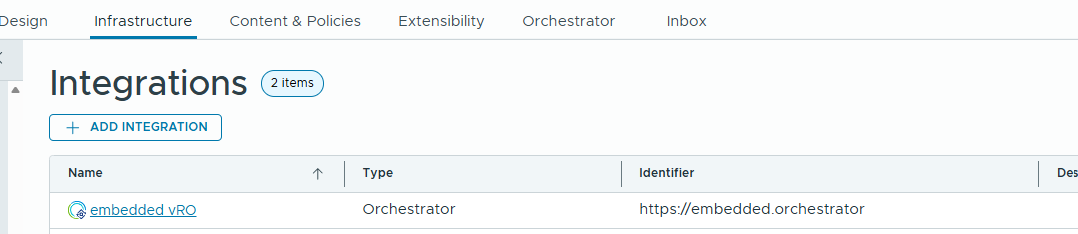
In my environment, embedded orchestrator is already integrated I can verify it in the integrations.
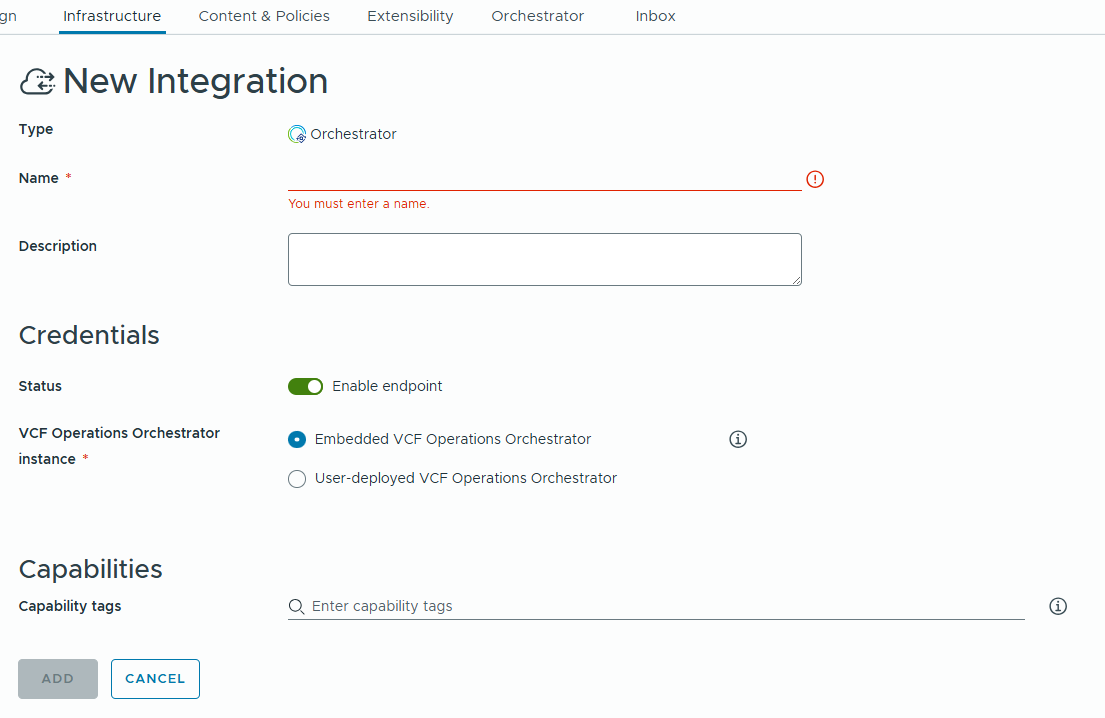
If it is not showing in the Integrations, please go to Infrastructure –> Connections –> Integrations –> Add Integration button and select Orchestrator
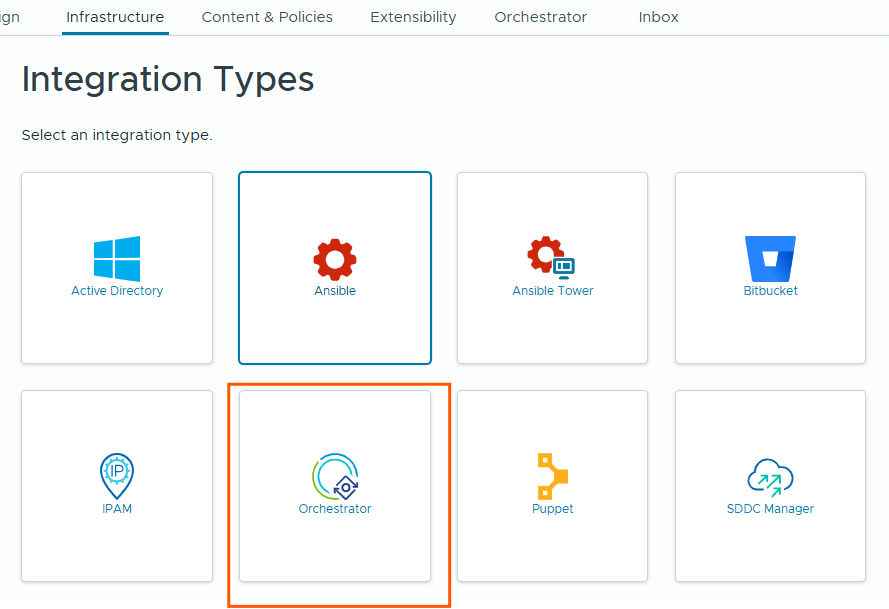
Provide the name and choose “Embedded VCF Operations Orchestrator” and click ADD.
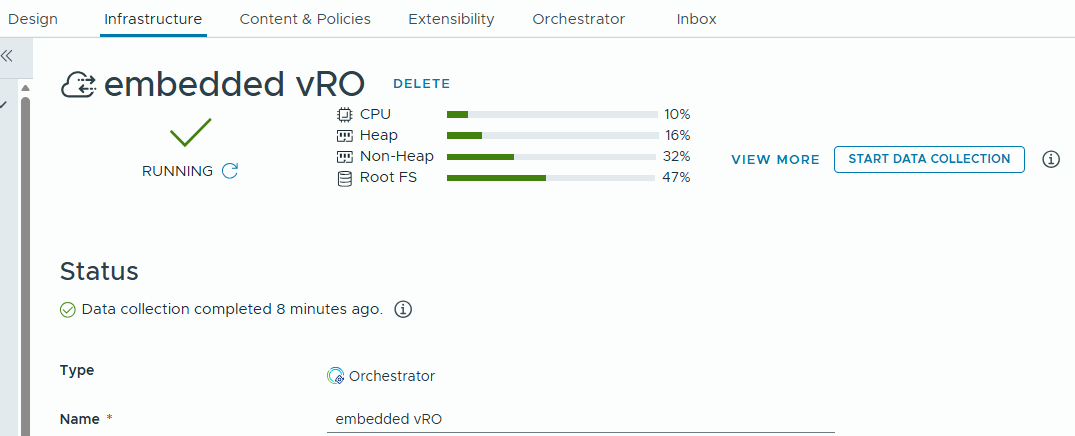
once added, please check it and confirm it is running.
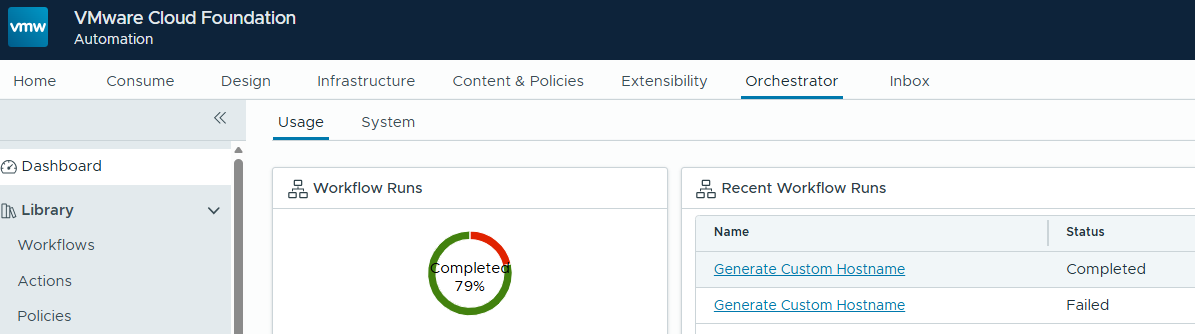
If the Orchestrator is successfully integrated, we can see the dashboard in Orchestrator tab like below.
Running Add an Active Directory server workflow
By running this workflow, we establish a connection between vRealize Orchestrator (vRO) and an external Active Directory (AD) server. This integration enables vRO workflows to query, create, and modify AD objects such as users, groups, and computer accounts. As a result, we can implement advanced automation capabilities within VMware Cloud Foundation Automation (VCFA).
Example:
During automated VM provisioning, a vRO workflow can join the newly deployed virtual machine to the Active Directory domain, place it in the appropriate Organizational Unit (OU), and assign access permissions by adding relevant users or groups—ensuring the VM is fully compliant with enterprise standards from day one.
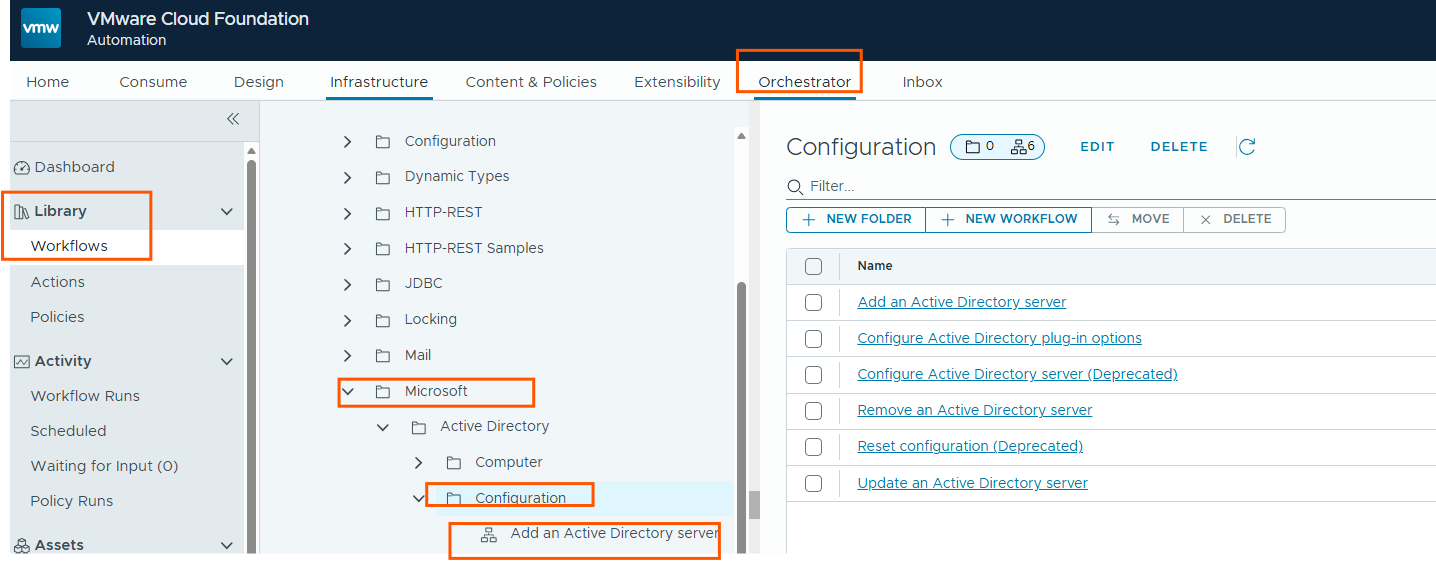
Go to Orchestrator tab –> Library –> Workflows –> change to tree view on left side –> Microsoft –> Configuration –> select Add an Active Directory server
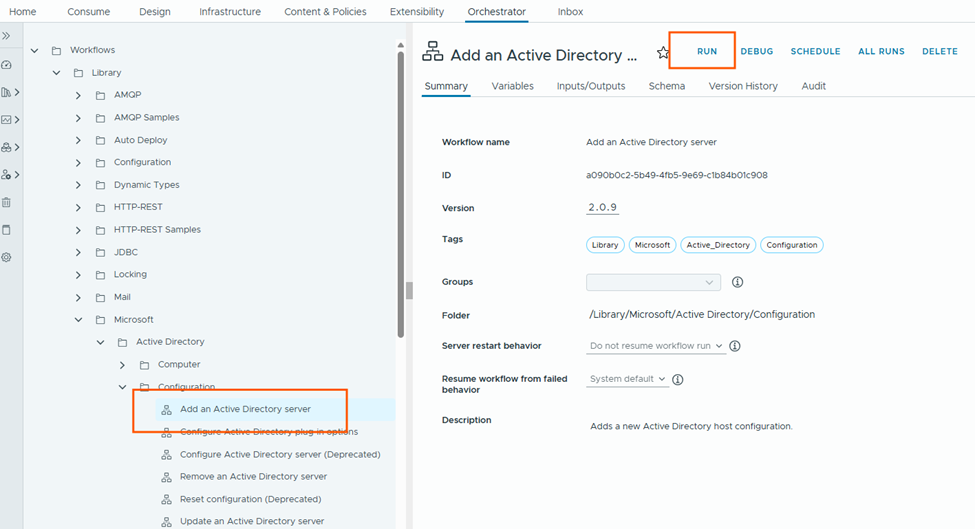
Next click RUN button.
It will ask few details about the AD server, please provide and run the workflow.
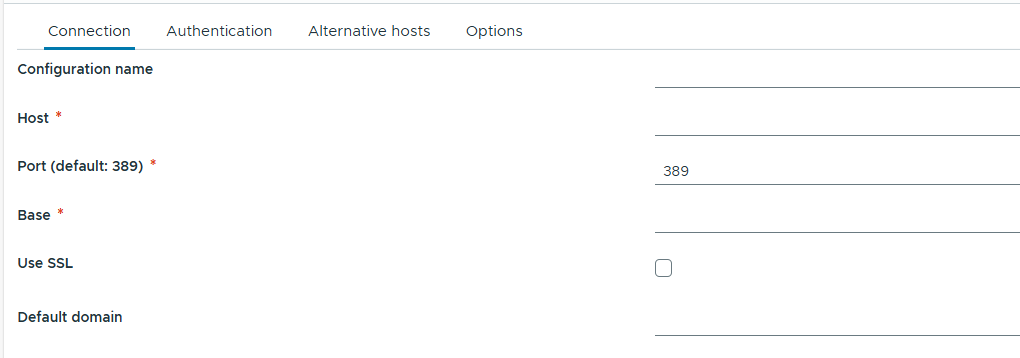
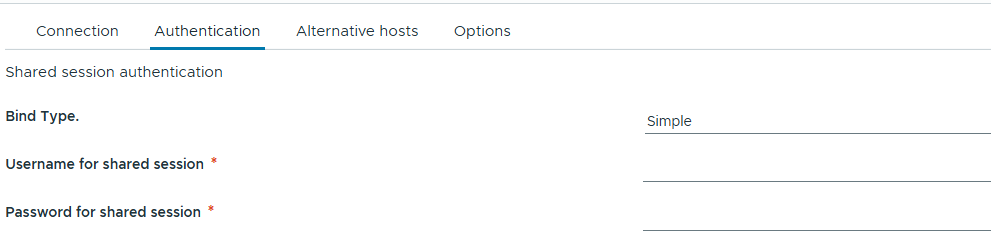
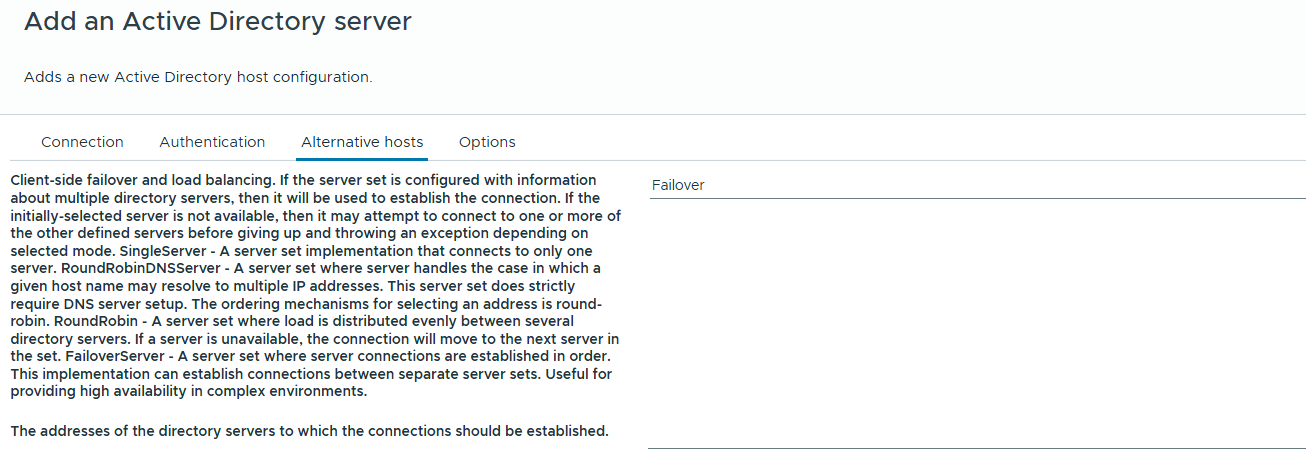
Once the workflow is run successfully, we can go to the Orchestrator inventory and see AD configuration is populated.
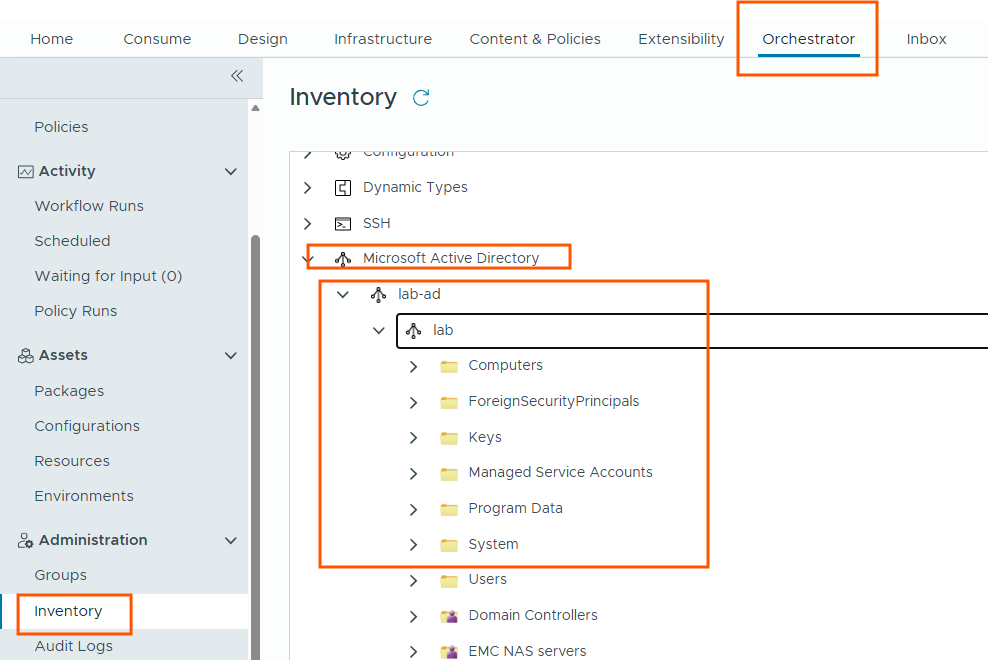
I can see, AD server details are populated correctly, this confirms that VRO and external AD server established connection properly.
Running Add an vCenter Server instance workflow
By running this workflow, we establish a connection between vRealize Orchestrator (vRO) and an external VMware vCenter Server instance. This integration allows vRO workflows to interact with vSphere inventory objects such as virtual machines, datastores, networks, clusters, and hosts. As a result, we can enable advanced infrastructure automation capabilities within VMware Cloud Foundation Automation (VCFA), including provisioning, reconfiguration, and lifecycle management of virtual machines.
Go to the workflow library, and select the below workflow from vCenter folder and click RUN.
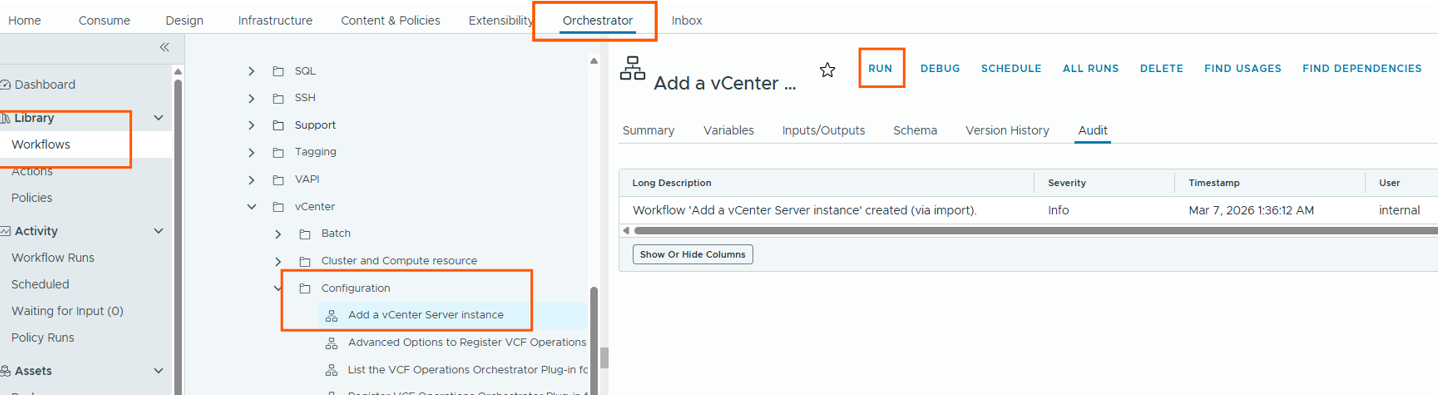
Fill in the required details to connect to your vCenter.
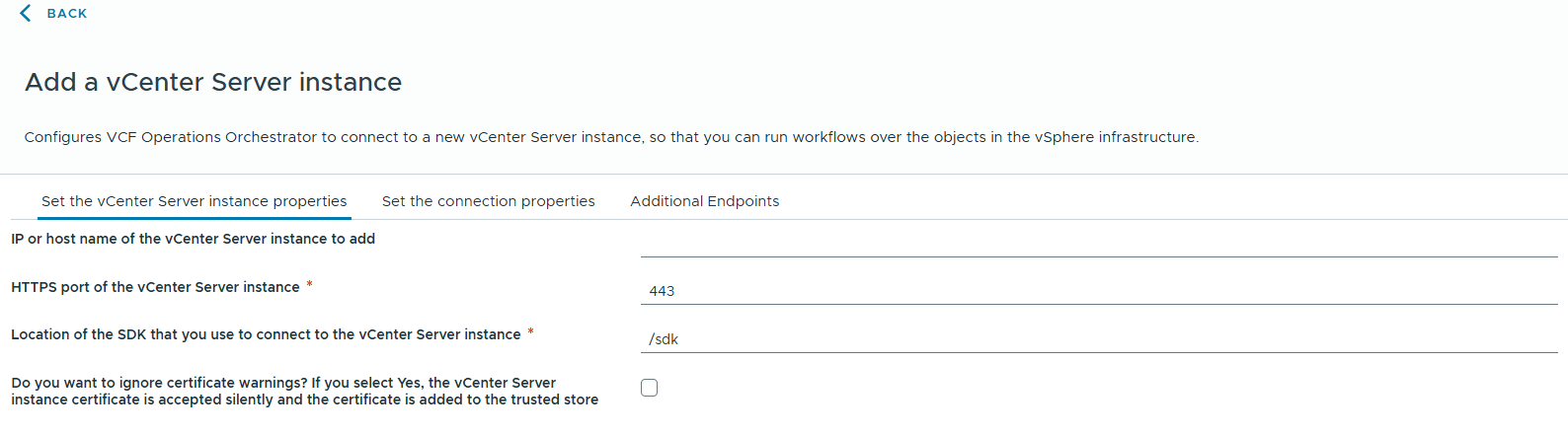
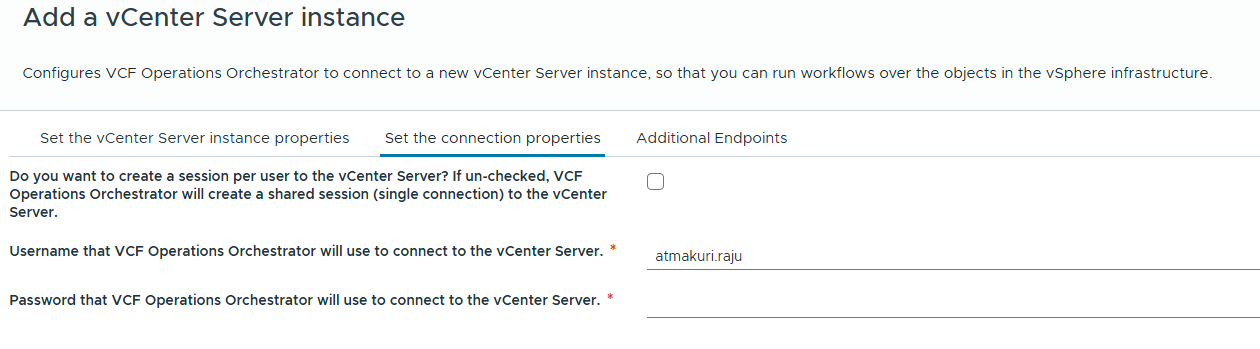
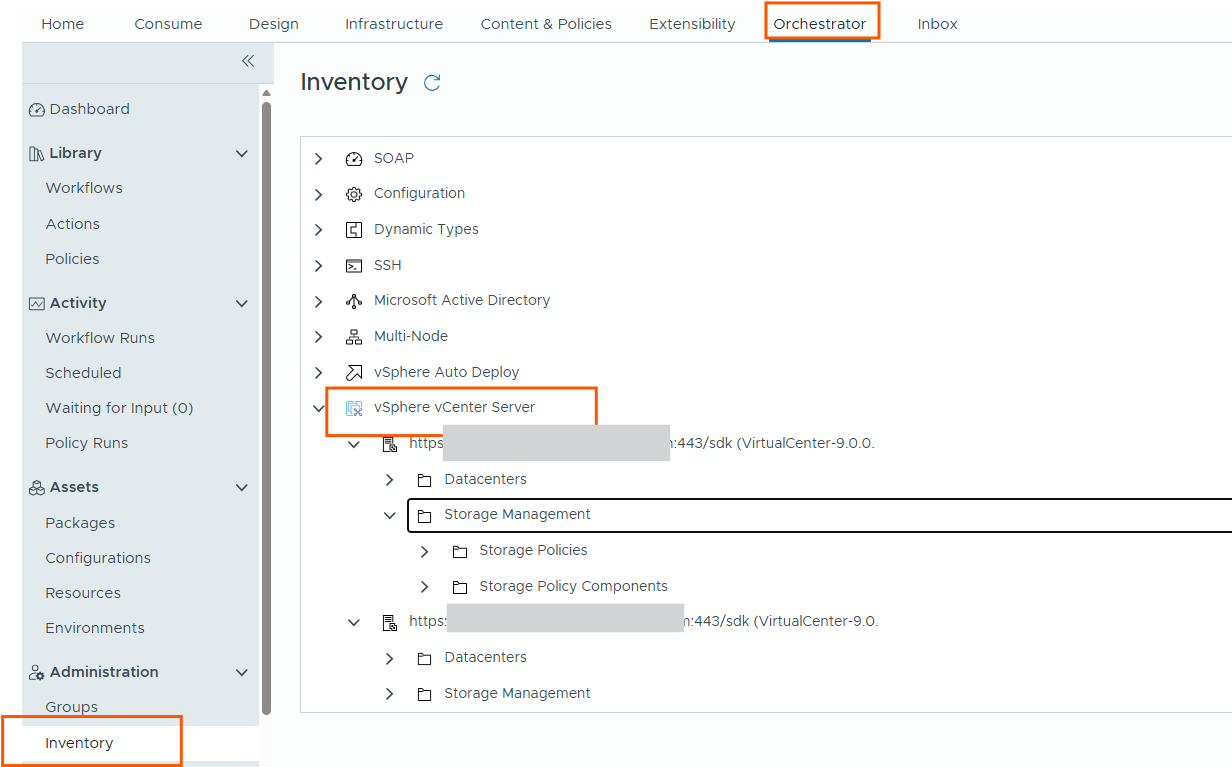
Once the workflow run completed successfully, validate the inventory.
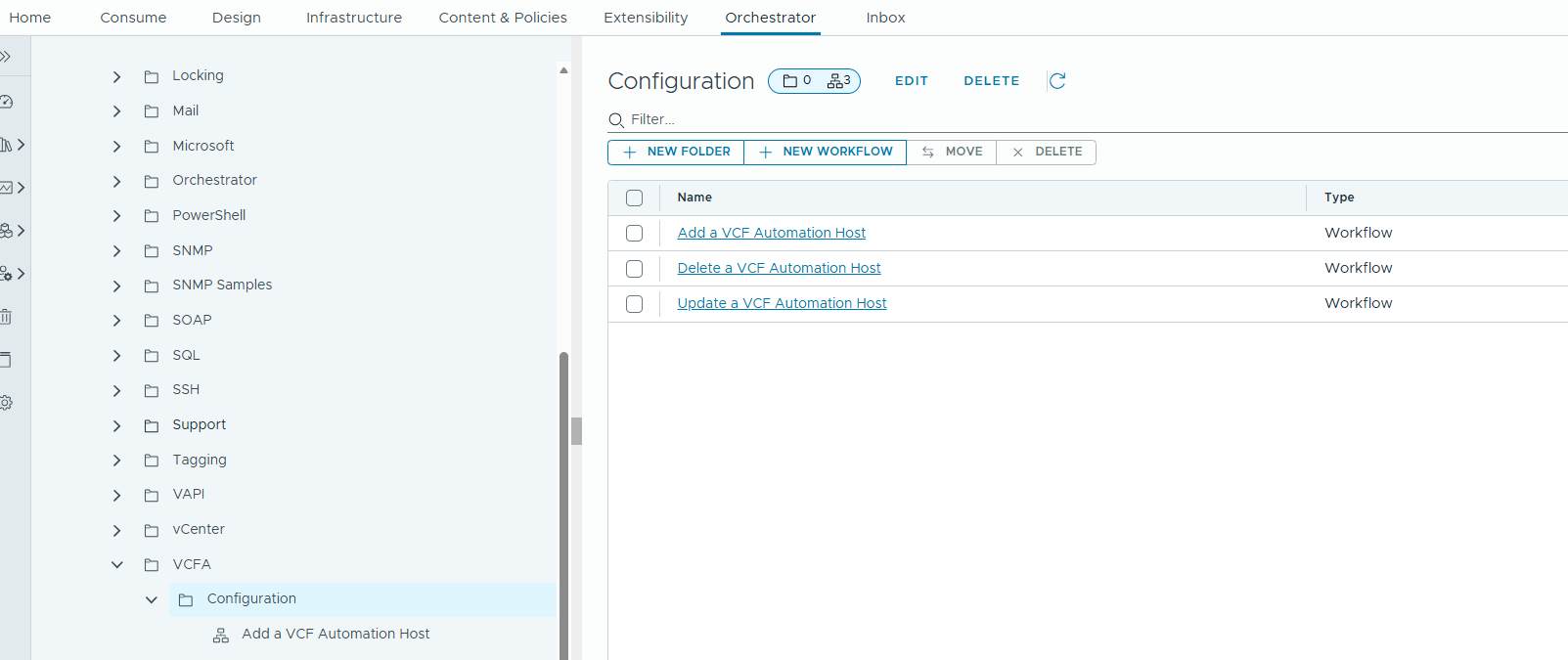
Next we will run “ Add a VCF Automation Host workflow” as well.
Creating Generate custom hostname subscription
Next, we will import the custom hostname generation package into Orchestrator (vRO). This package, developed by our internal team, contains pre-built workflows and actions designed to generate hostnames based on the naming requirements in the project.
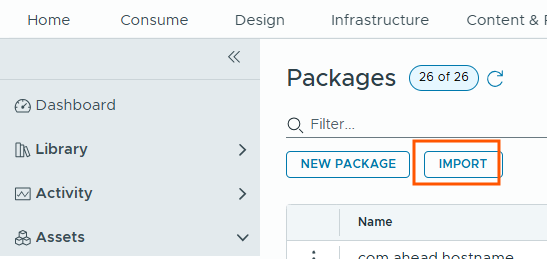
Once the package is imported, these workflow actions can be integrated into the VM lifecycle using extensibility subscriptions in VCF Automation. To achieve this, we will create a subscription with the Compute Allocation event type and map it to the appropriate hostname generation action. This subscription will be configured with blocking enabled, ensuring that whenever a VM deployment request is triggered, the workflow is executed before provisioning continues. The workflow dynamically generates a compliant hostname and passes it back to the deployment process.
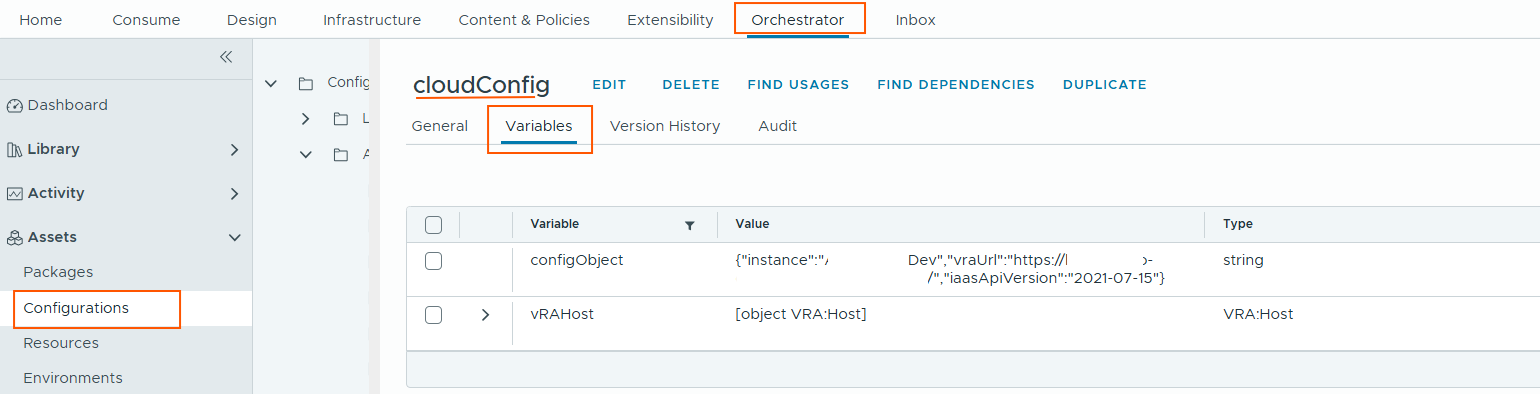
Before creating the subscription, we will create the cloudConfig variable confirguration.
Go to Orchestrator –> Assets –> Configurations –> Create a new folder under Library –> Click New configuration –> add configuration with two variables as below.
Next, we will create a subscription.
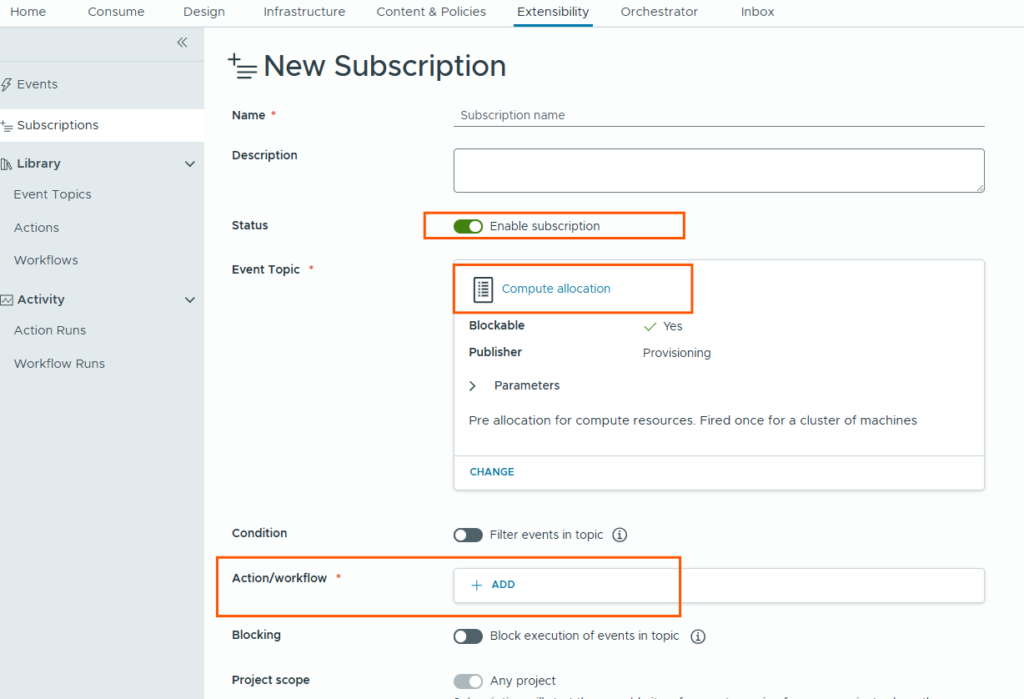
Go to Extensibility –> Subscriptions –> New Subscription.

Provide a name for the subscription and select the Event Topic as Compute Allocation. This is because the hostname (VM name) must be determined before the actual compute resource is created. By choosing the Compute Allocation event type, we ensure that the custom hostname generation workflow is triggered at the appropriate stage in the VM provisioning lifecycle – prior to VM creation.
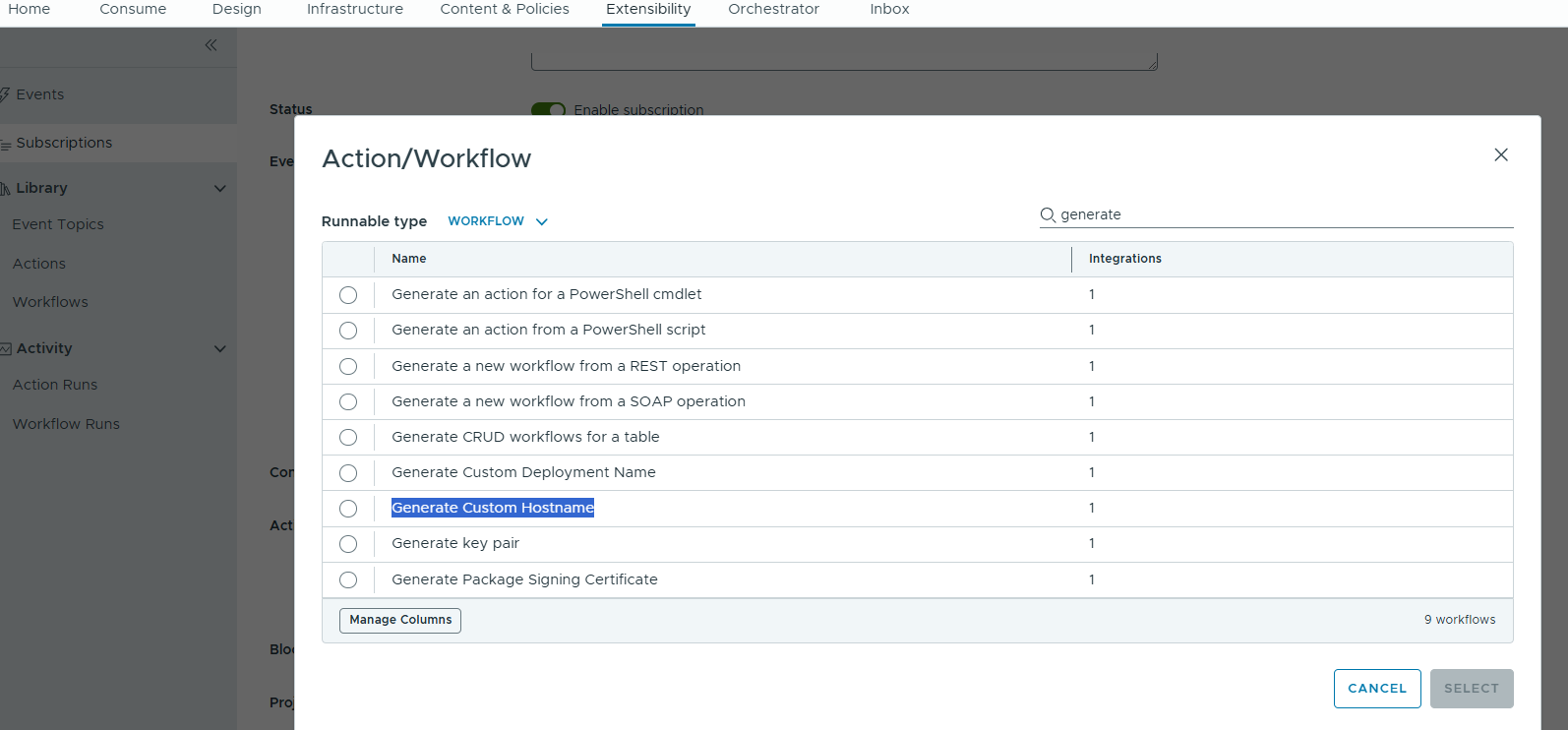
Next, we will select the generate custom hostname action workflow.
Enable blocking and I am selecting project scope as “Any project” as I want to enable this for all projects.
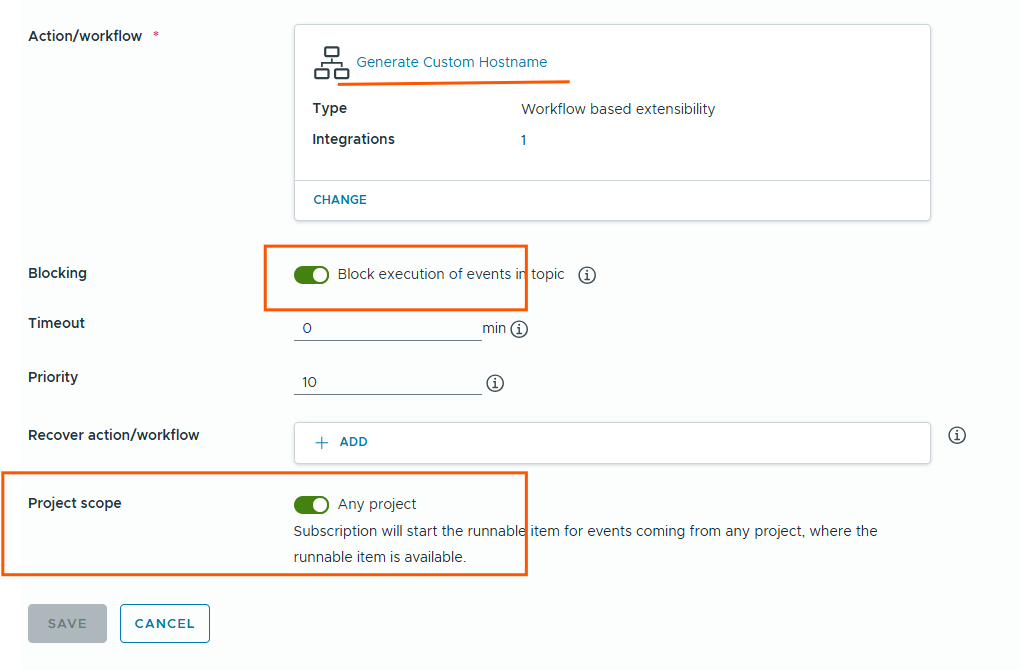
With this, the Orchestrator (vRO) integration is successfully completed. We have configured the necessary endpoints (Active directory and vCenter server), imported custom workflow and action packages, and integrated them into the automation lifecycle using extensibility subscriptions in VCF Automation.
Thank you for reading.