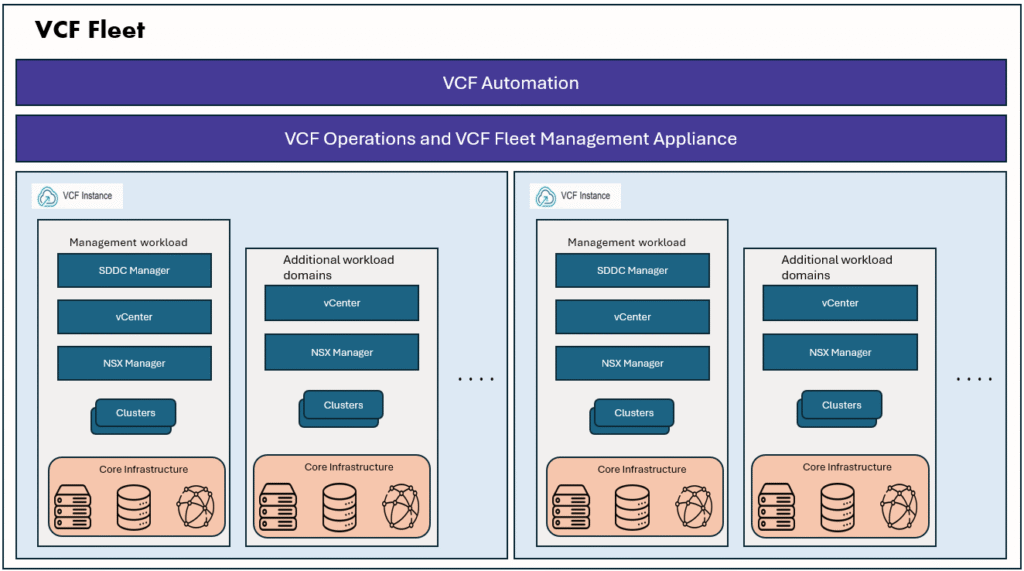
In the previous blog, we have configured the Keycloak IdP on Ubuntu VM.
Today, we will configure VCF SSO in embedded vIDB mode and use this Keycloak IdP.
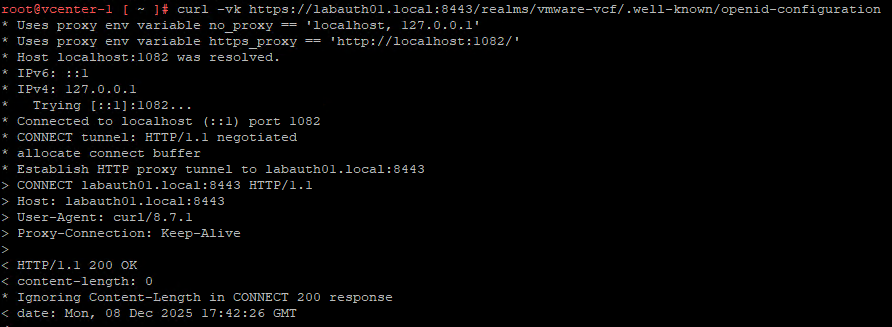
I have verified that I am able to access the Keycloak IdP from the vCenter and from VCF Ops VM.
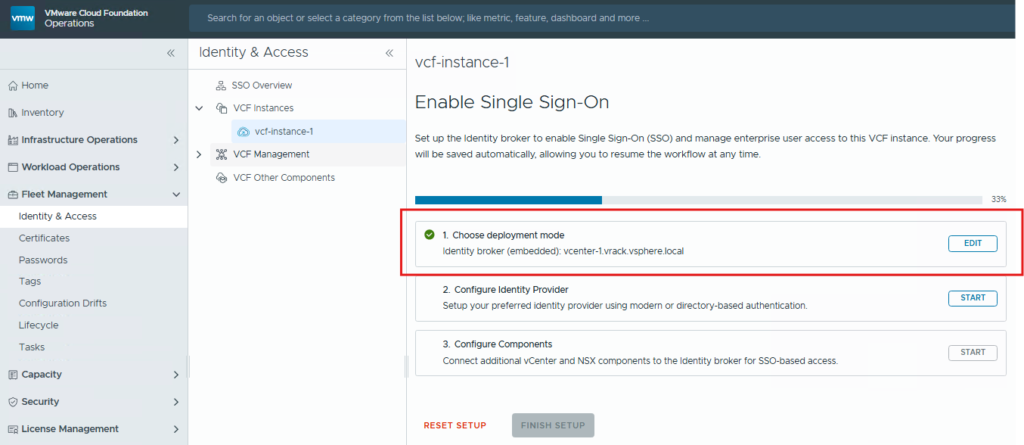
Next login to VCF Ops console as admin user, go to Fleet Management section, click on Identity and Access tab.
Chose the VCF instance and select the deployment mode as embedded and start configuring the Identity provider.
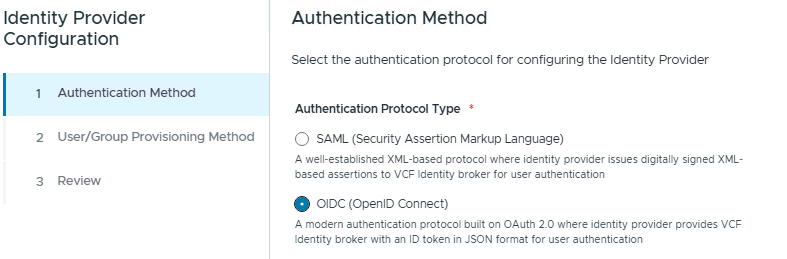
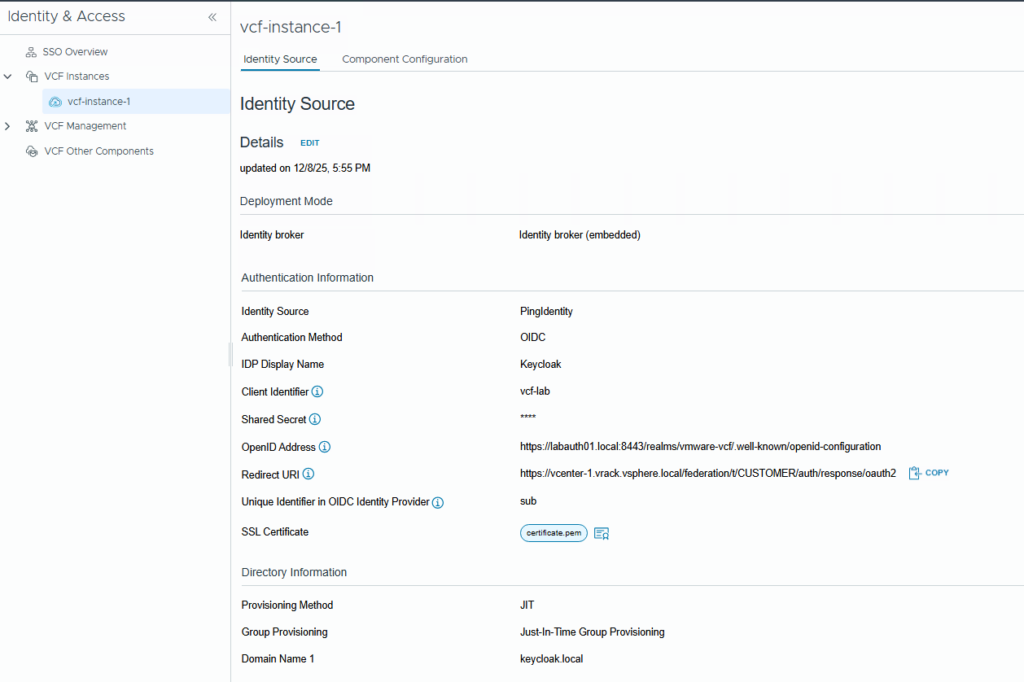
In the configure Identity provider step, select the OIDC protocol type.
Next we chose “PingIdentity” option for this lab, we dont have PingIdP server here, but we have similar IdP which is Keycloak.
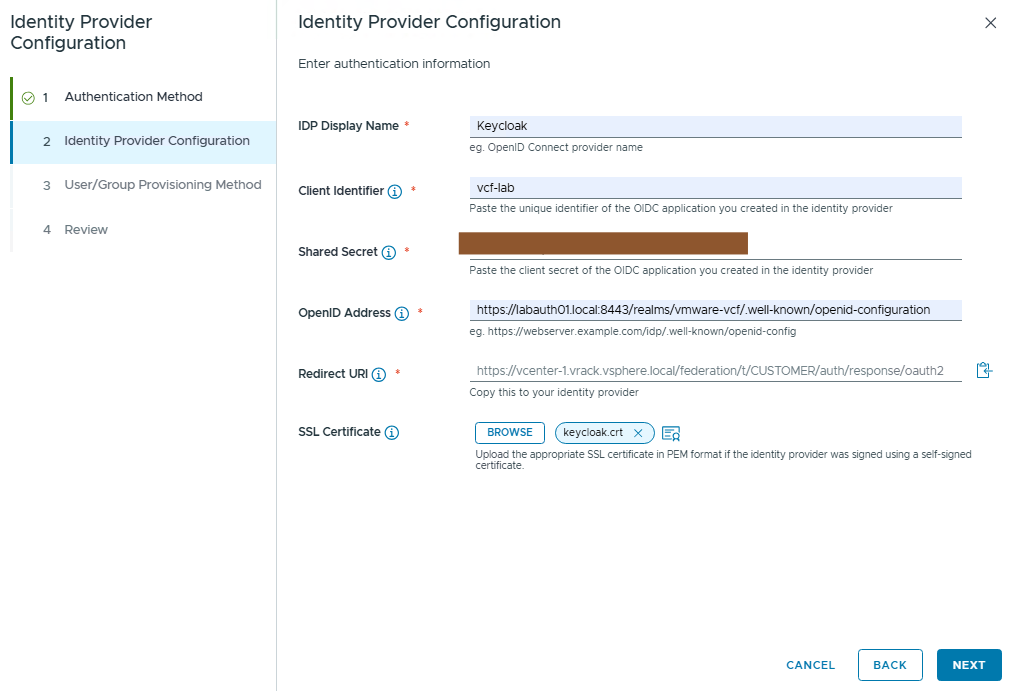
Provide the IdP details as required, we have collected all these details during the Keycloak OIDC client configuration. Please refer part1.
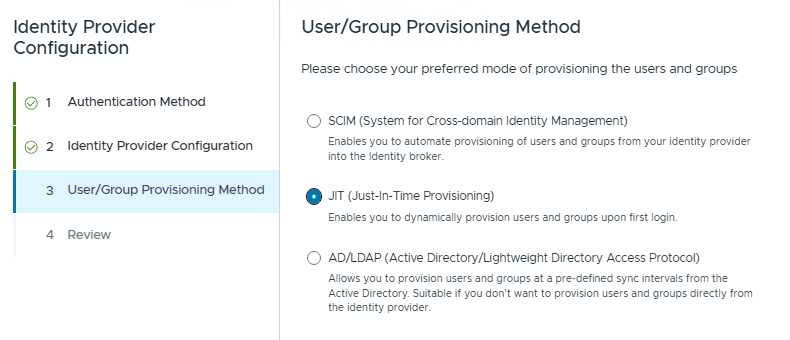
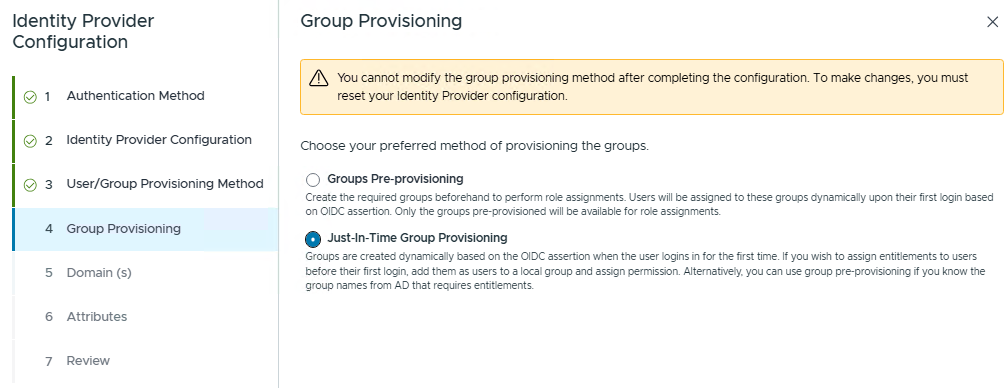
Next select the JIT and JIT Group provisioning.
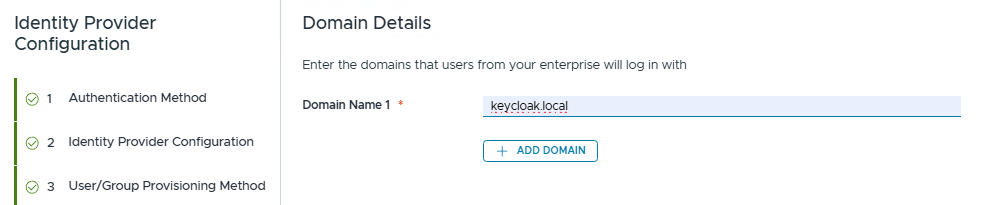
Choose domain, I am using keycloak.local domain here.
then in the Attributes screen, no need to change anything in the User Attributes section, in the Group Attributes, type groups. We have created the OIDC client scope with group membership in Keycloak.
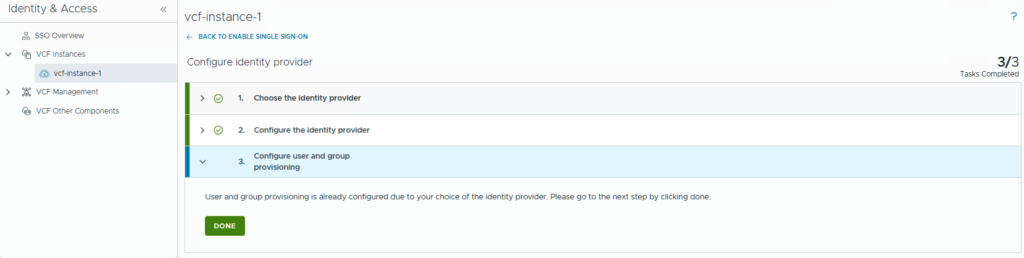
Then click Next, review all details, click FINISH button. If no errors, you will see screen like below. Click on Done, and click the FINISH Setup button.
You should see details like below:
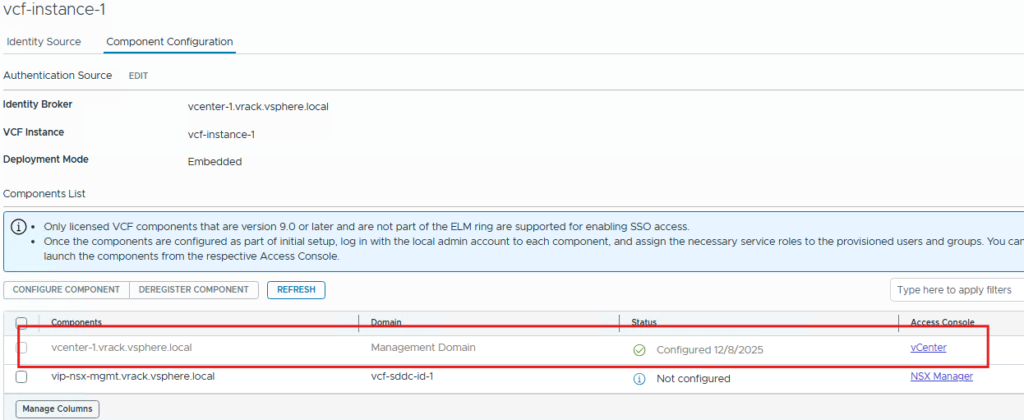
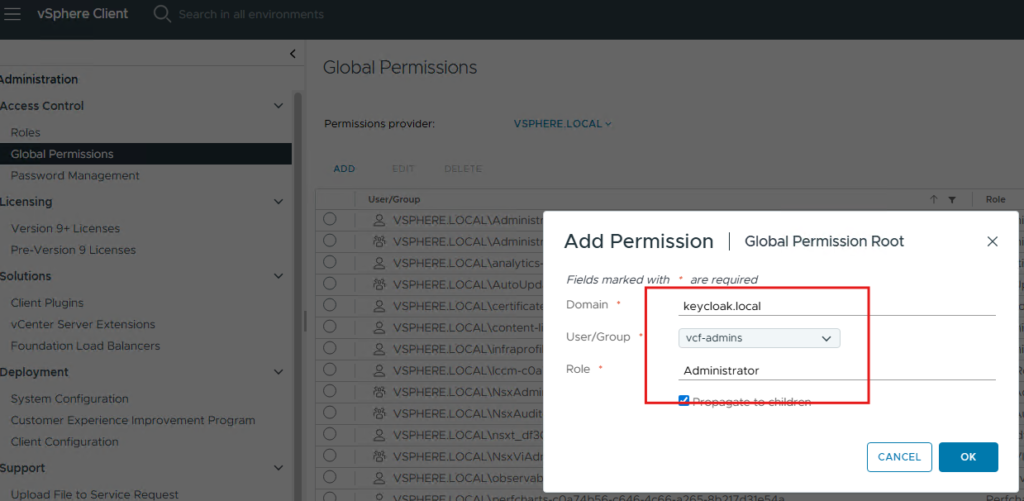
Now we need to login to vCenter server as administrator user then, assign privileges to this vcf-admins group impoted from Keycloak IdP.
We have created vcf-admins group in Keycloak IdP, that is visible here in vCenter. Assign the Administrator privilege.
Now go to a new browser or incognito tab, try to login to the vCenter using VCF SSO. Once you selected VCF SSO, it will automatically take you to the IdP login page.
Once you authenticated with user credentials, user Bobby will be able to login to the vCenter with the assigned privileges. User bobby is part of vcf-admins group, and for this group we have given Administrator permissions, so bobby will be logged in as administrator. In the same way, we can create multiple users and groups in Keycloak IDP and assign various permissions as per the RBAC requirements.
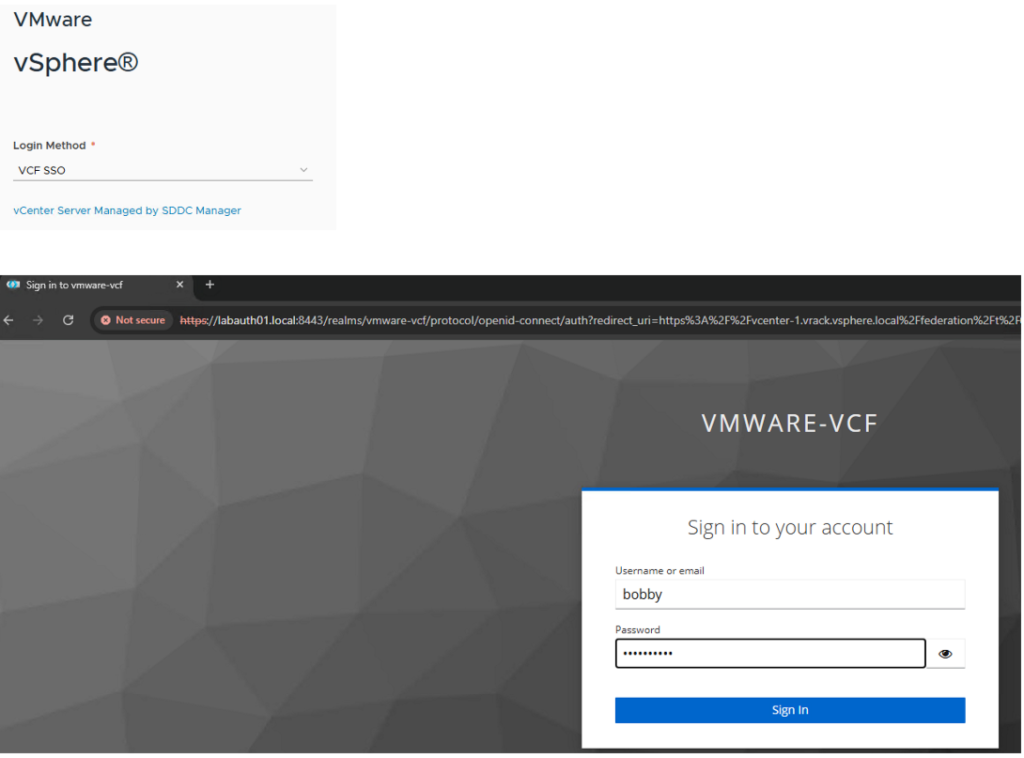

With this VCF SSO is successfully enabled for vCenter.
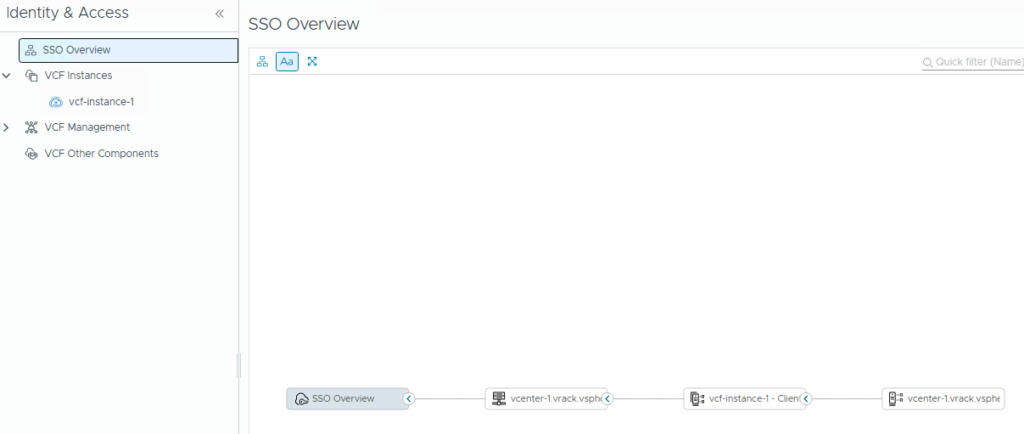
Next, we will enable SSO for NSX Manager and VCF Ops.
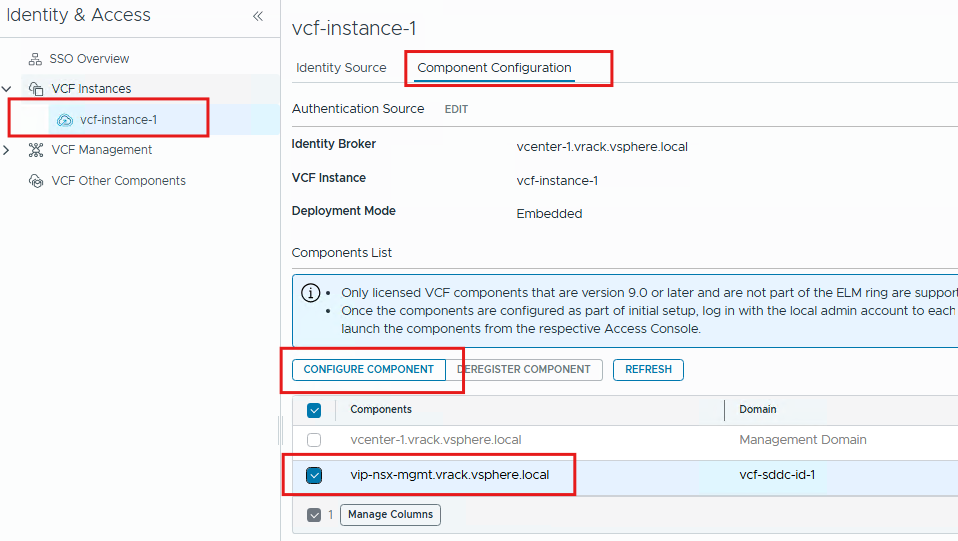
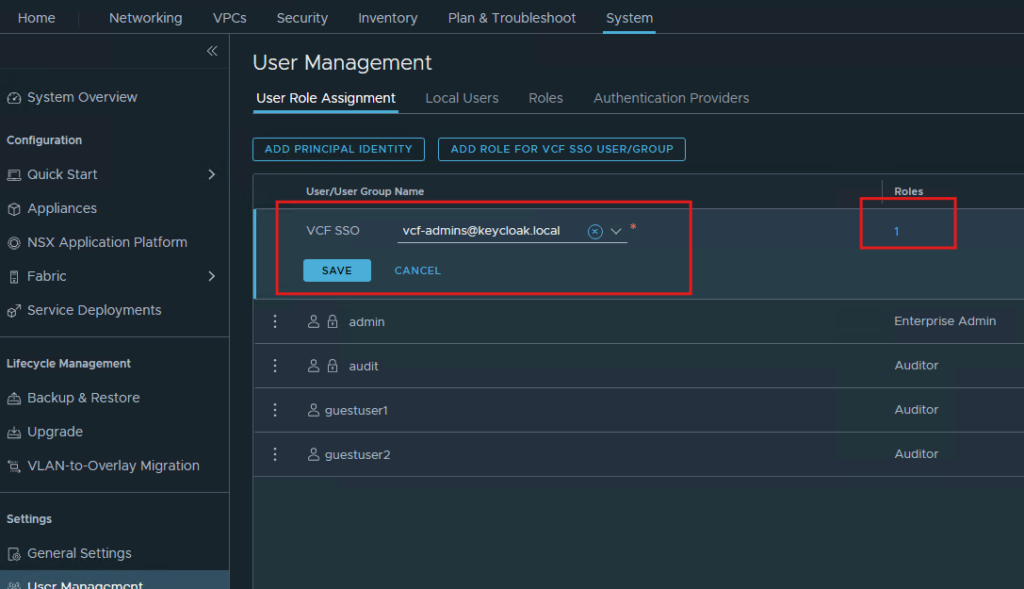
Now login as NSX-admin and then decide which privilege/role you want to assign to the group imported from Keycloak IdP.
Next, we will enable SSO for VCF Operations.
Go to VCF Management, select your operations appliance, enable SSO.
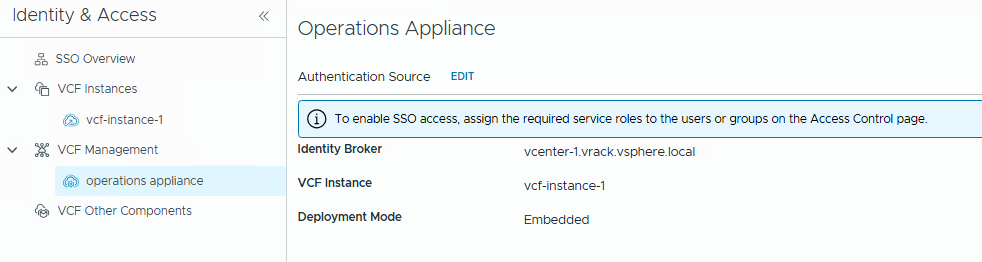
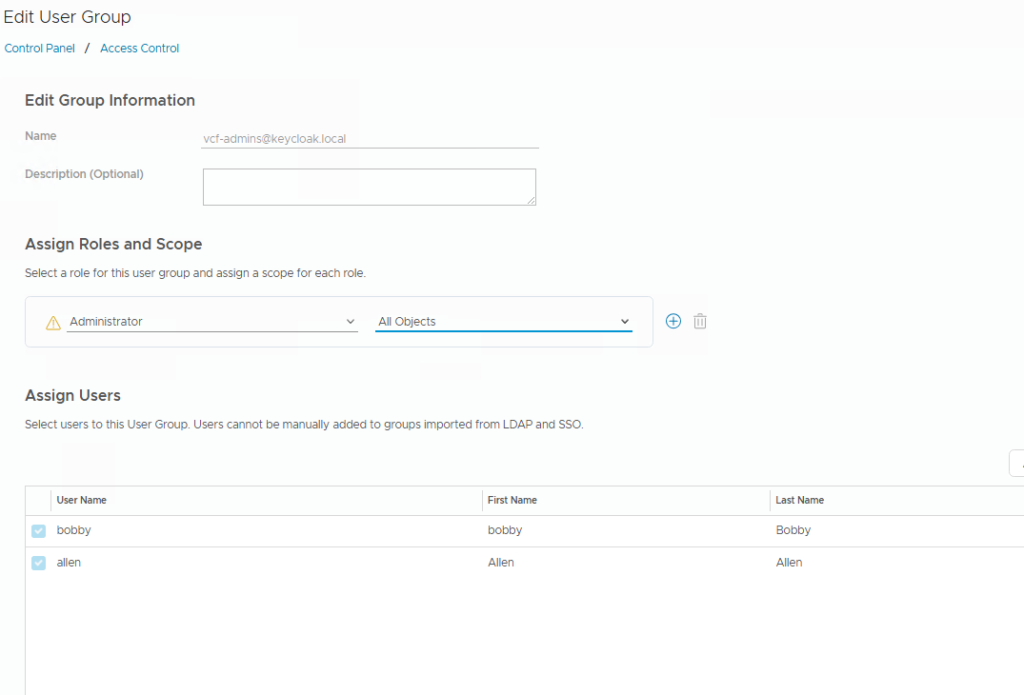
Then we need to configure the roles in VCF Ops.
Go to VCF operations –> Administration –> Control Panel –> Access control
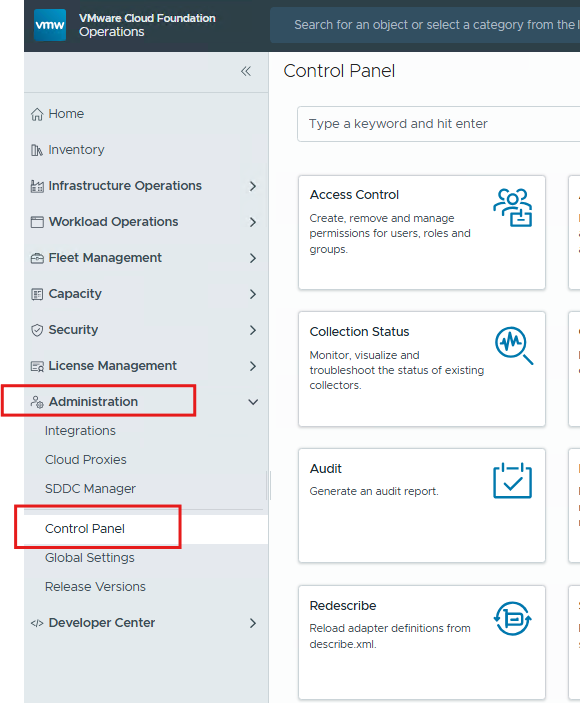
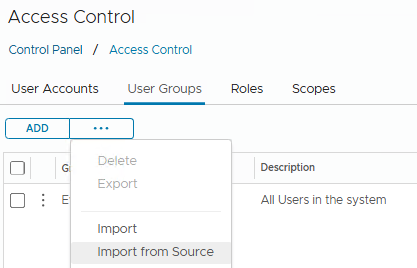
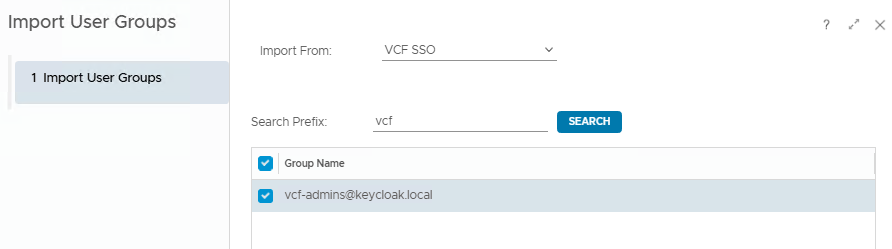
search the group and import it.
then edit the User group or edit the specific User and assign a Role.
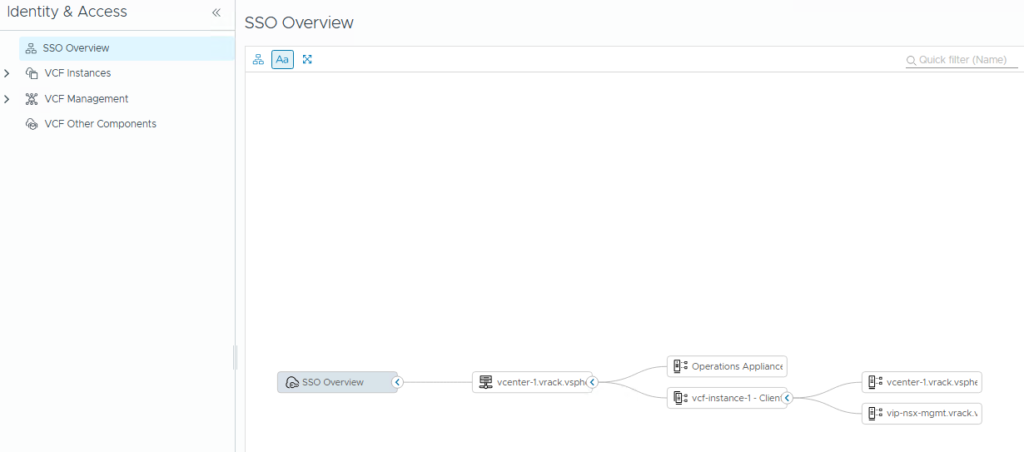
With this, we have successfully completed VCF SSO demo, enabled SSO for vCenter, NSX, and VCF Ops, and successfully tested user login for these components. I hope this blog will help users to understand how we can configure an external IdP and associate it with VCF SSO.
Thank you for reading.