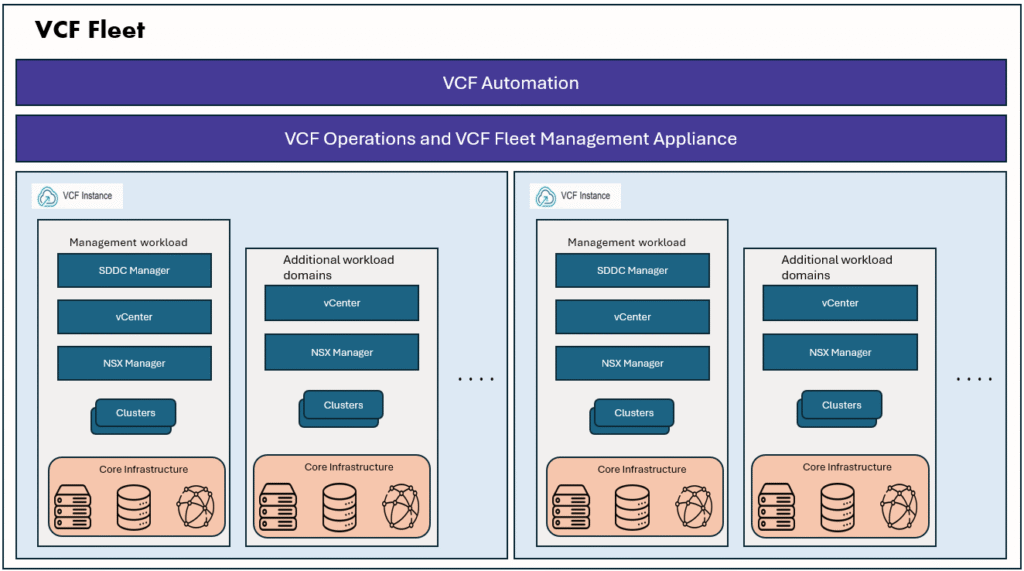
In this blog post, we will do a VCF9 deployment and understand the process of deploying VCF9 fleet for the first time.
Pre-requisites:
Before we start deploying our first VCF instance, we need to ensure that pre-requisites are completed. All the pre-requisite check list is documented and available in VCF Planning and Preparation Workbook, we need to review them carefully and ensure all check list items are completed.
If you ESXi hosts are not running at supported ESXi version, we will need to image the ESXi hosts with ESXi 9.0 image and configure the management IP address and root password.
Download VCF installer OVA and deploy it on a standalone ESXi host or a spare ESXi cluster from which VCF9 hosts, DNS, NTP servers are accessible and have network connectivity to Management, vMotion, vSAN VLANs.
Download the binaries:
In VCF9 onwards, we are referring the install/upgrade bundles as binaries. If the VCF installer have internet connectivity, we can download the required binaries.
If no internet connectivity we can configure the offline depot and download bundles from offline depot.
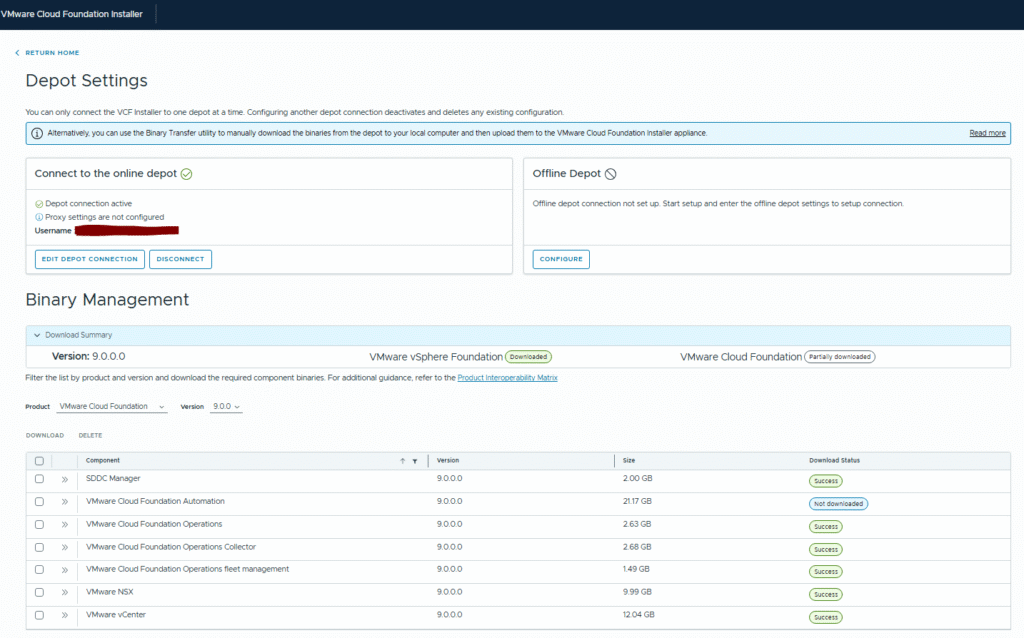
As shown above, I have downloaded all the bundles except the VCF Automation. I will connect VCF automation later.
Deployment of first VCF instance:
Go to the VCF installer home page, under deploy section, you can click on Deployment Wizard button, chose VMware cloud foundation.
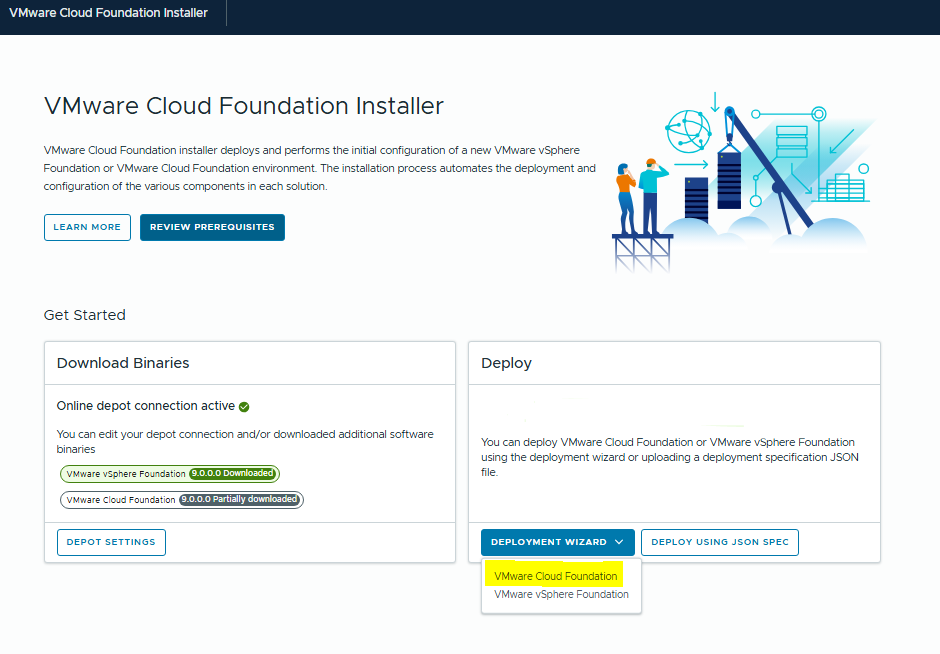
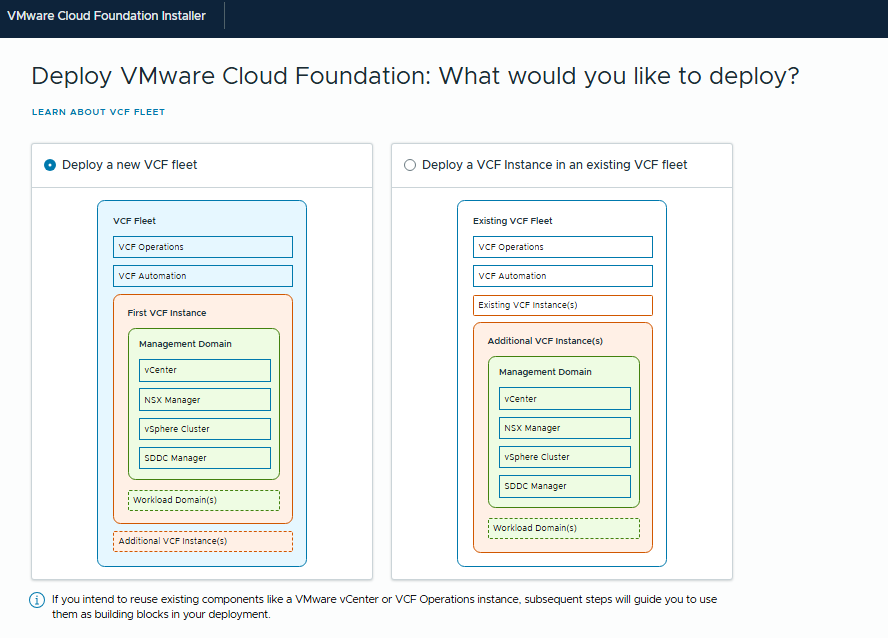
Choose to deploy a new VCF fleet
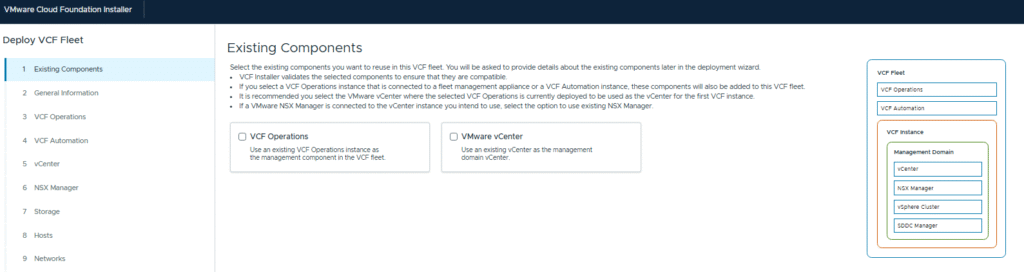
If you have existing compatible VCF operations and vCenter instances that you want to re-use (in Convert scenario) we will select these options otherwise we will leave them un-checked.
I dont have any of these existing components, so click next.
In the below General information section, you will specify your VCF instance name, management domain name and you can decide if you want to configure VCF Fleet appliances (VCF Ops and VCFA) to different portgroup or NSX segments.
I am going with same DVPG, all the core VCF appliances (SDDC Manager, vCenter, NSX) and VCF fleet appliances will be on same port group.
This depends on your design choice of networking model. For this lab purpose, I am not selecting this checkbox, means it will go with default option, all components will be with same Management port group.
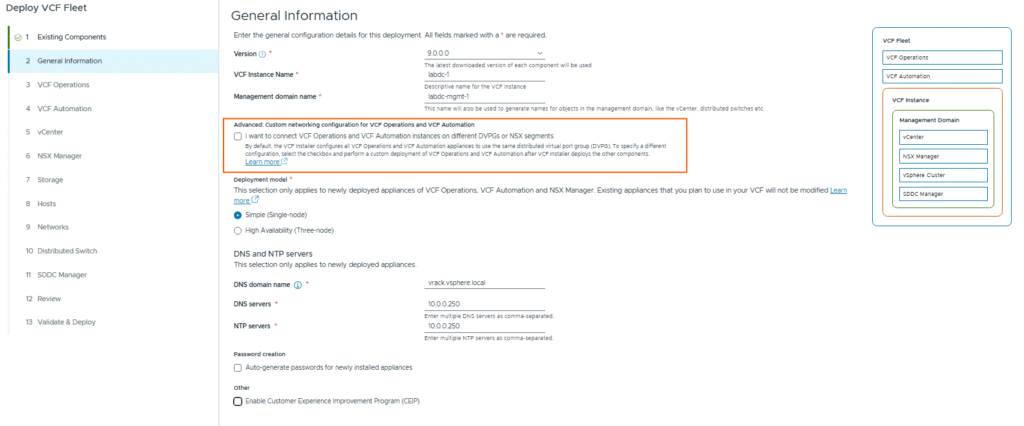
And here we can choose deployment model, I am going with Simple model (it deploys single node appliances without HA) to keep the minimal footprint. For production it is preferred to go with HA deployment model.
Then you will provide your DNS and NTP details, click Next.
If you want, you can choose to auto generate passwords for the newly installed appliances checkbox. I am not selecting this box; I will provide passwords myself.
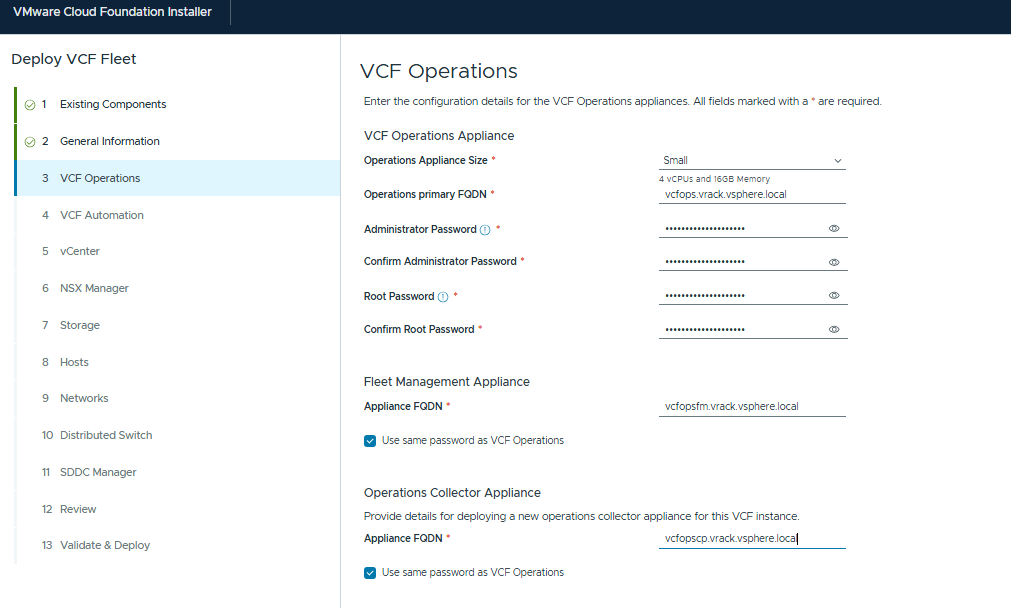
Next you will provide details for the VCF operations appliances
VCF operations primary node (single node only as we selected simple model)
VCF Fleet management appliance (new Aria LCM)
VCF operations collector appliance (a.k.a cloud proxy)
Next, it will be VCF Automation, in this blog I am not going to deploy VCF Automation appliance. So, I selected the checkbox “I want to connect a VCF Automation later”. and click Next.

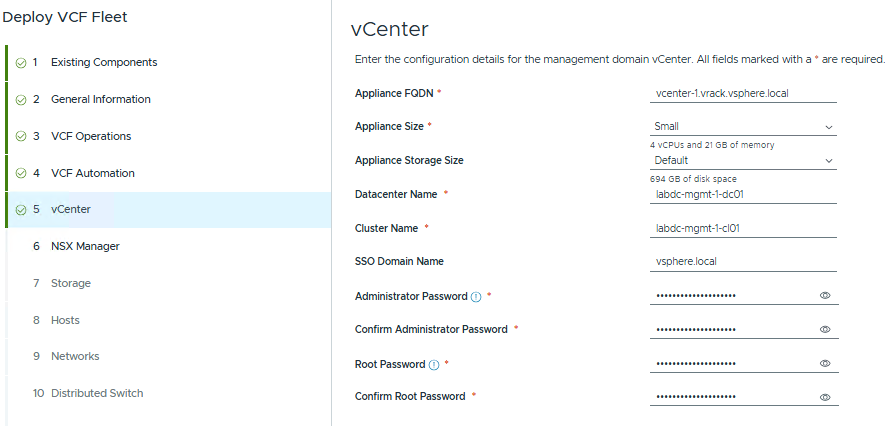
Next provide the vCenter details and click Next.
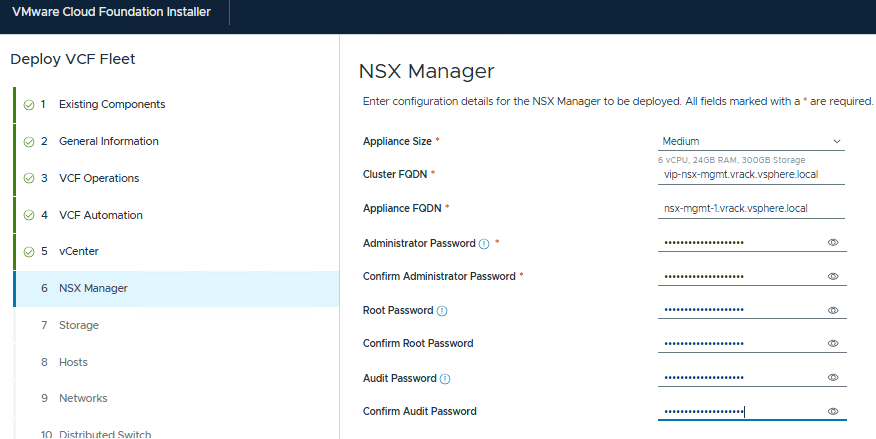
Next provide the NSX details, as we selected simple deployment model, we need to provide a single nsx manager instance detail and nsx manager cluster VIP details.
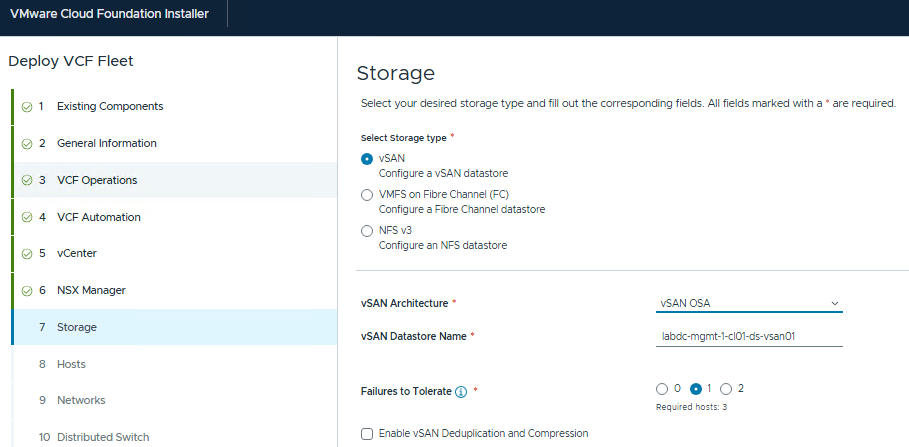
Next select the storage option, for the Management domain below 3 principal storage options are supported in VCF9, I am going with VCF9.
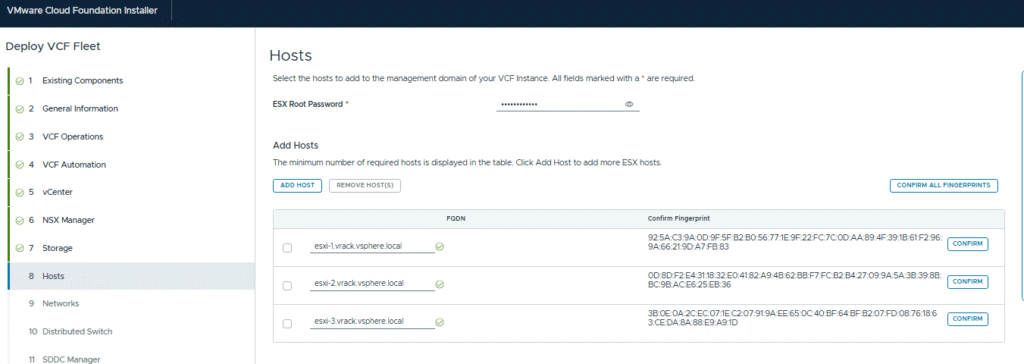
Next provide the ESXi host details, 3 minimum, 4 hosts recommended. Add the hosts details and confirm the fingerprint.
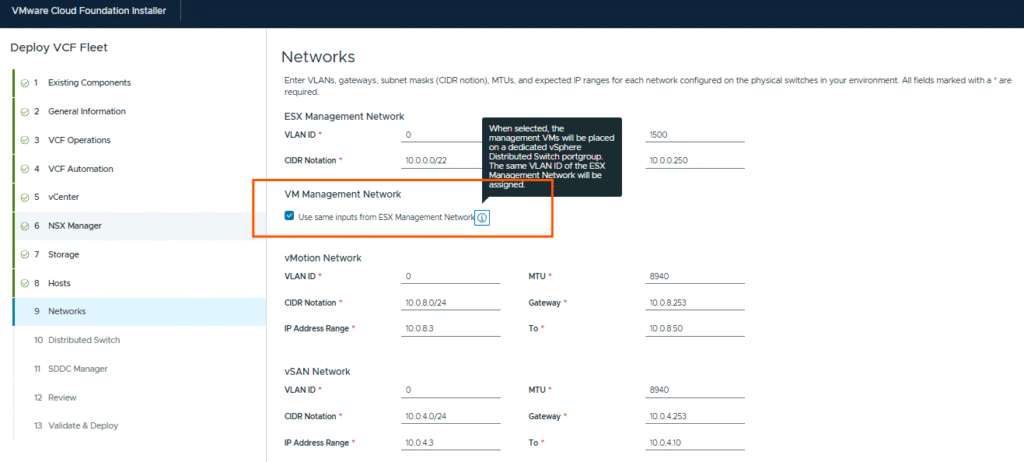
Next provide the Network details, I am choosing to use same VLAN ID for ESX Management Network and VM Management network, if we want, we can keep them separate.
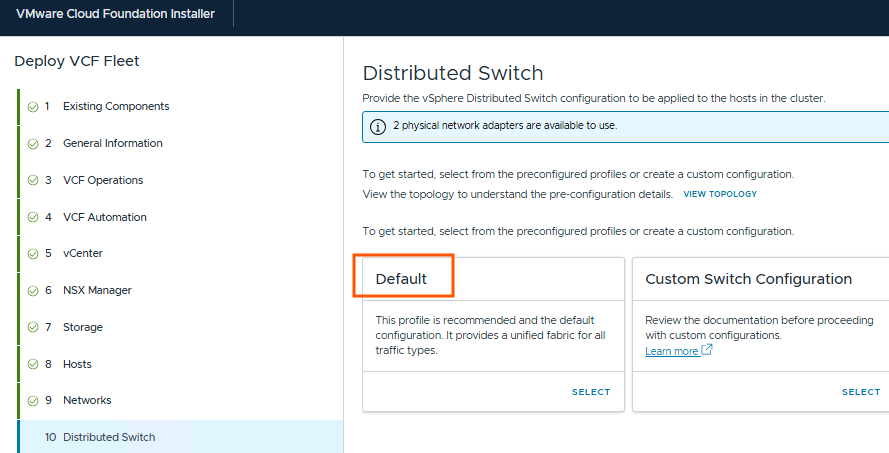
Next, we need to specify VDS details, I am going with default option.
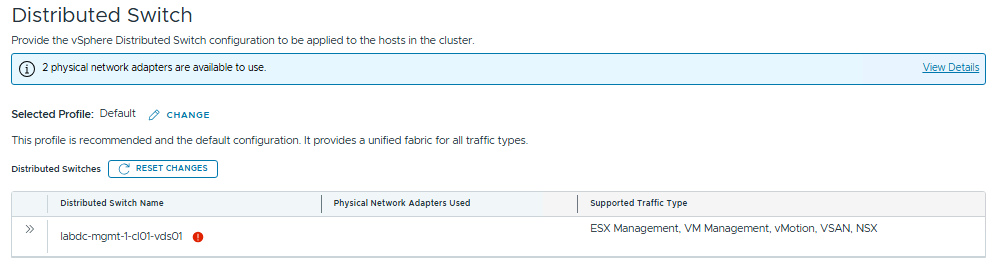
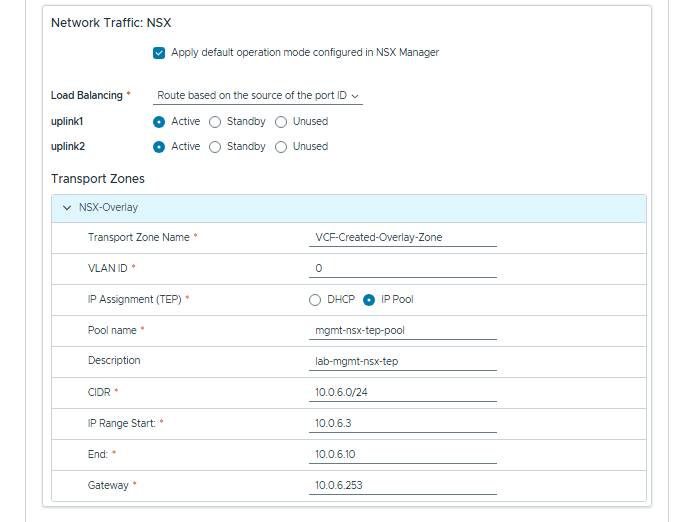
Once you select the default option, you can now configure the Management, vMotion, vSAN portgroup details and NSX TEP pool details.
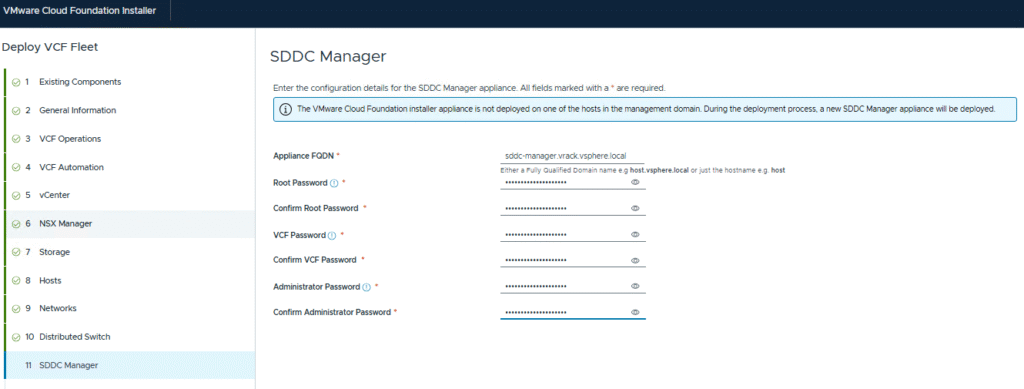
Next provide the details of sddc manager.
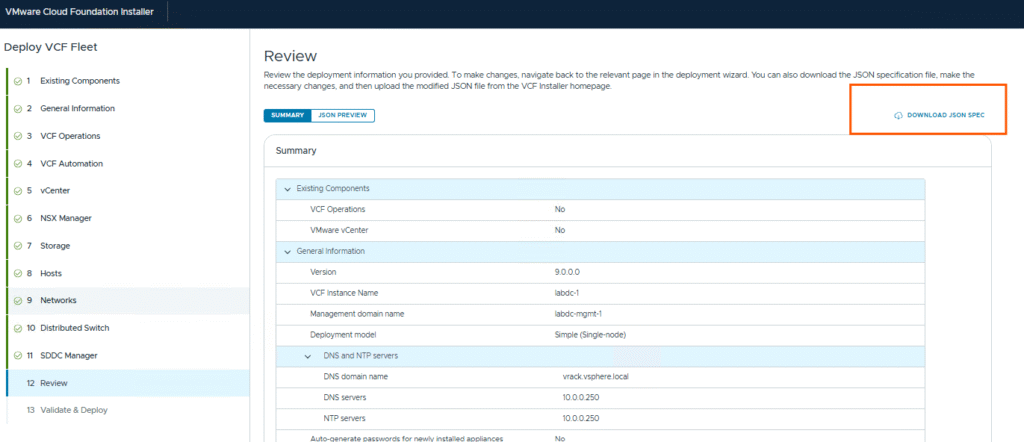
Next, we do a final review, and it is better to download the json file for future reference or in case we need to re-attempt a failed deployment, json will be useful.
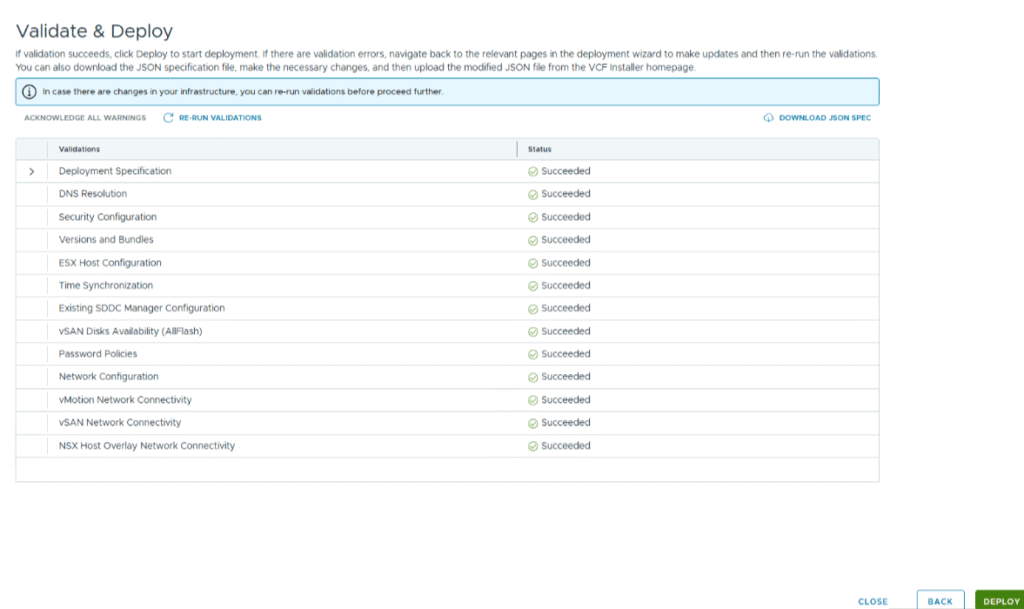
Click next and start the validation. All validations are succeeded. Now we can click on Deploy button.
It will start the deployment, first it will deploy the management vCenter on the first ESX host, then it will deploy SDDC Manager appliance and initialize the SDDC Manager services, it forms the vSphere cluster, create VDS and portgroups and migrate all vmks and VMs to VDS portgroups, enables VSAN, create VSAN datastore, create VSAN storage policies, and then deploy NSX Manager cluster and configures the NSX manager VIP, and prepares the cluster with NSX VIBs, configure NSX.
Then it will deploy the VCF Fleet management appliance (the new Aria LCM) VM then finally deploys the VCF operations appliance.
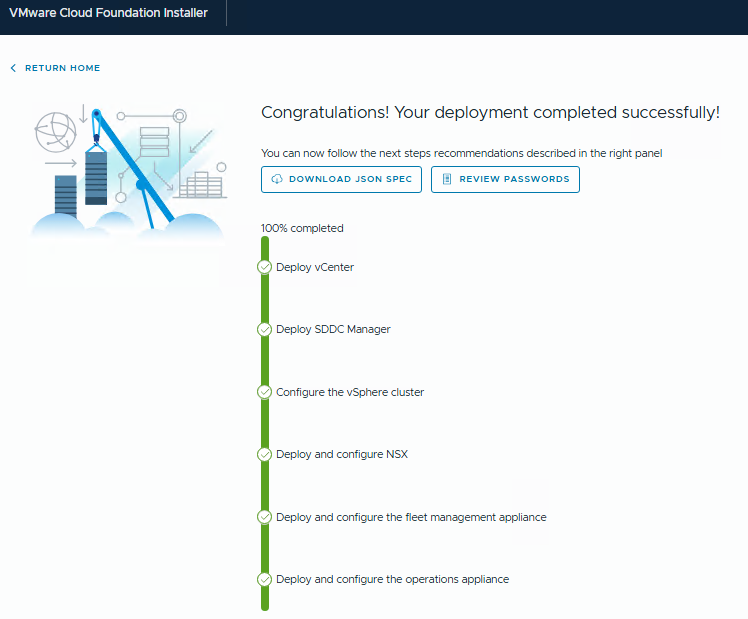
We can login VCF operations console and see our VCF Fleet
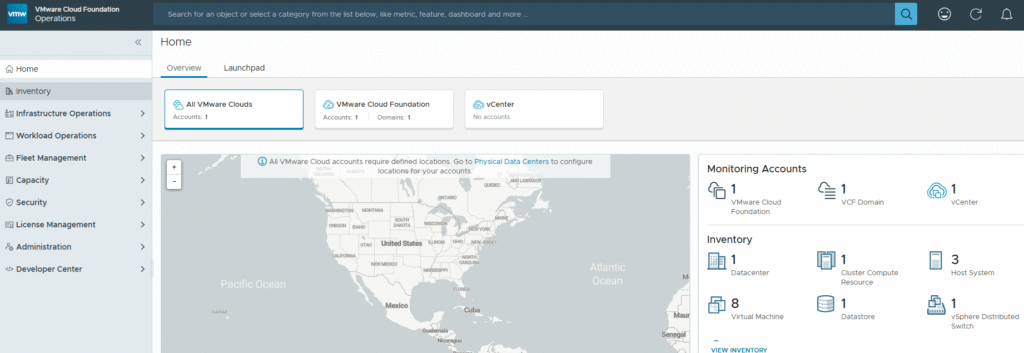
With this, I am ending this blog post, in upcoming blogs, I will discuss what are the logs that we can monitor during the deployment, and commonly used log files and their locations, and I will also plan to deploy a second VCF instance to existing VCF fleet, configuring VCF SSO with external IdP etc.
Thank you for reading and please stay tuned for upcoming blogs.